Search the Community
Showing results for tags 'macos'.
Found 1 result
-
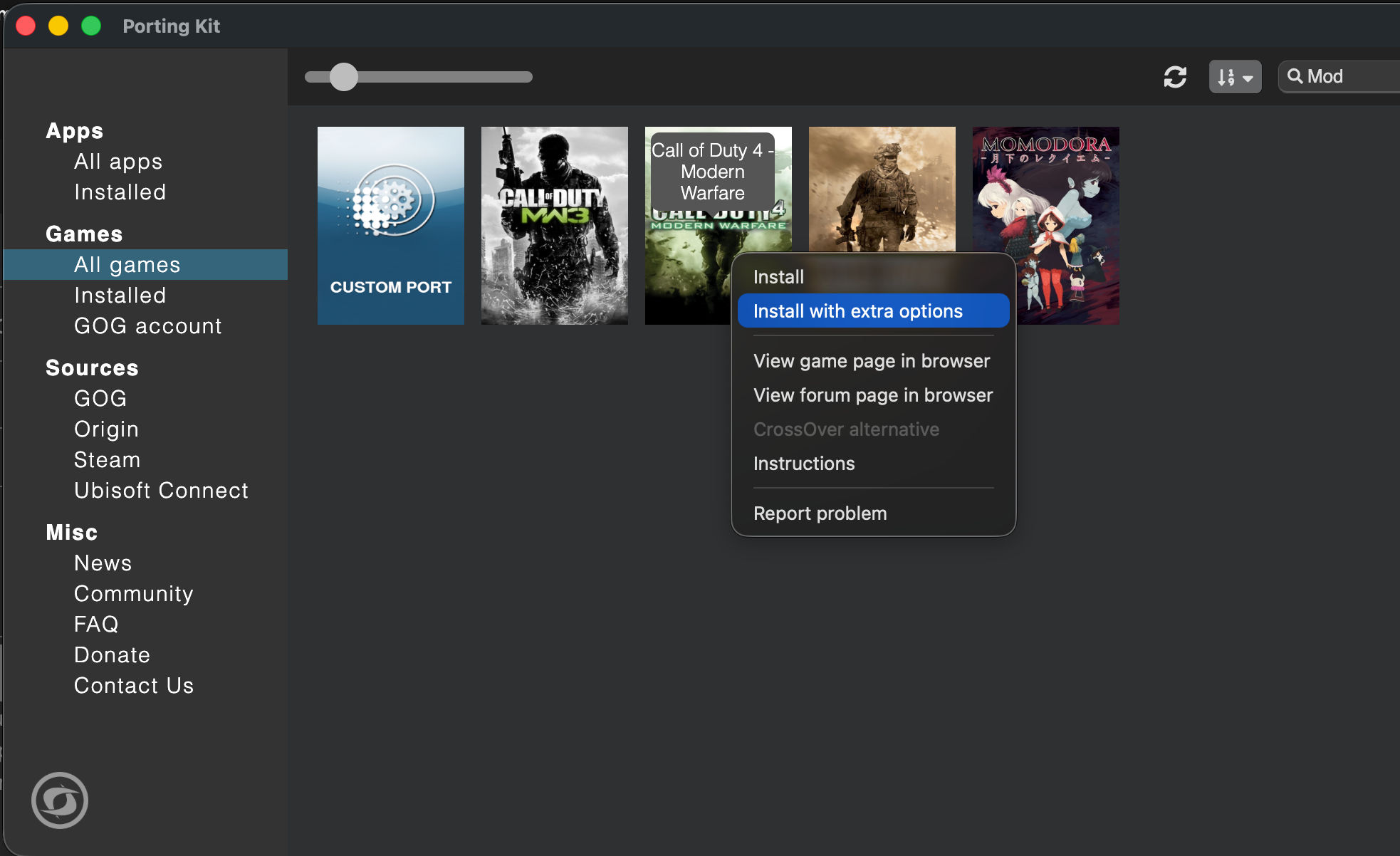
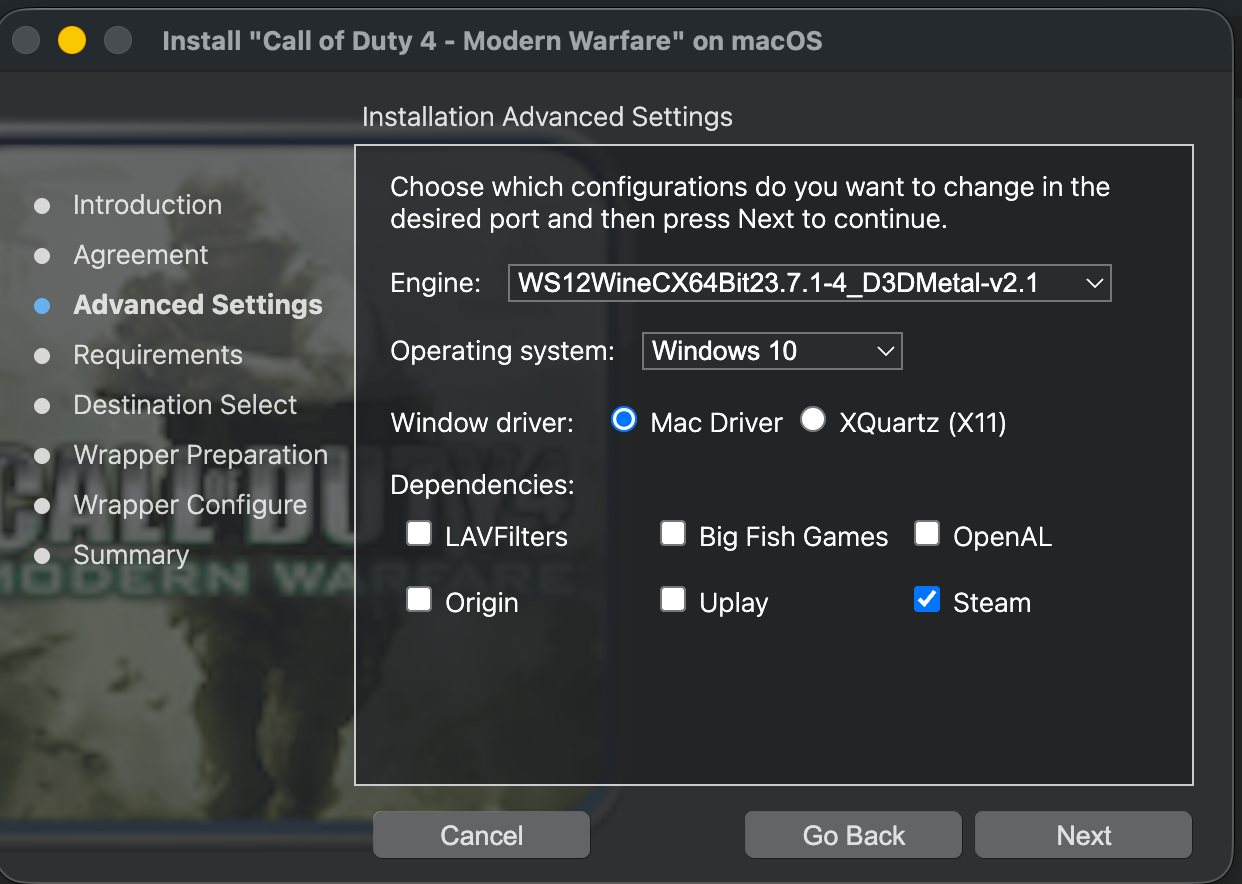
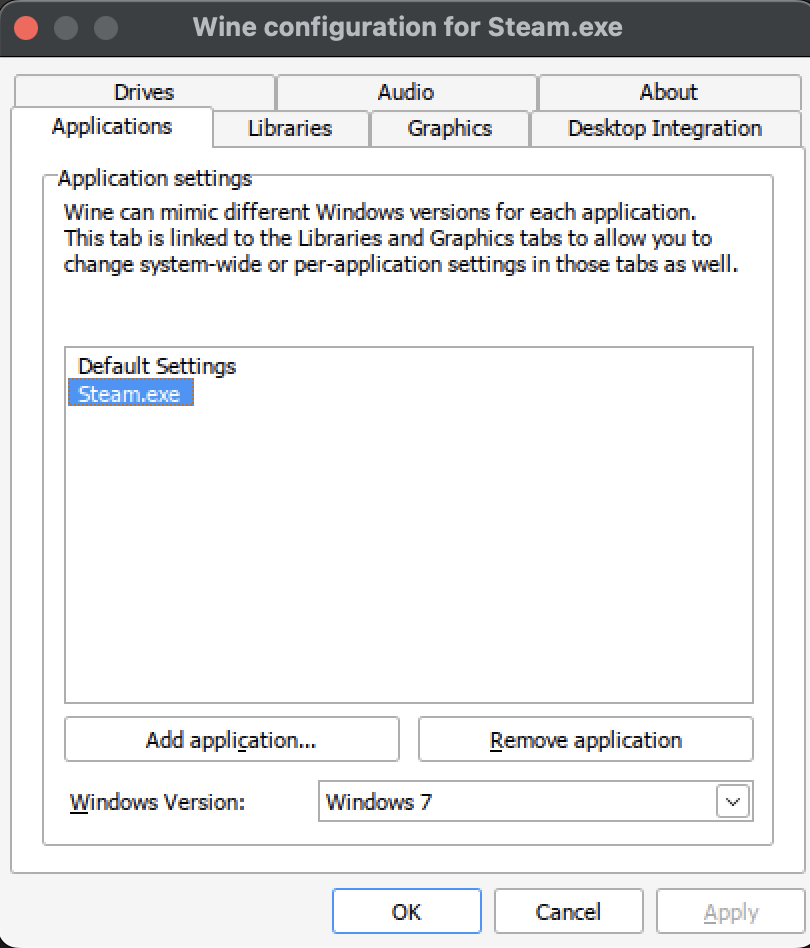
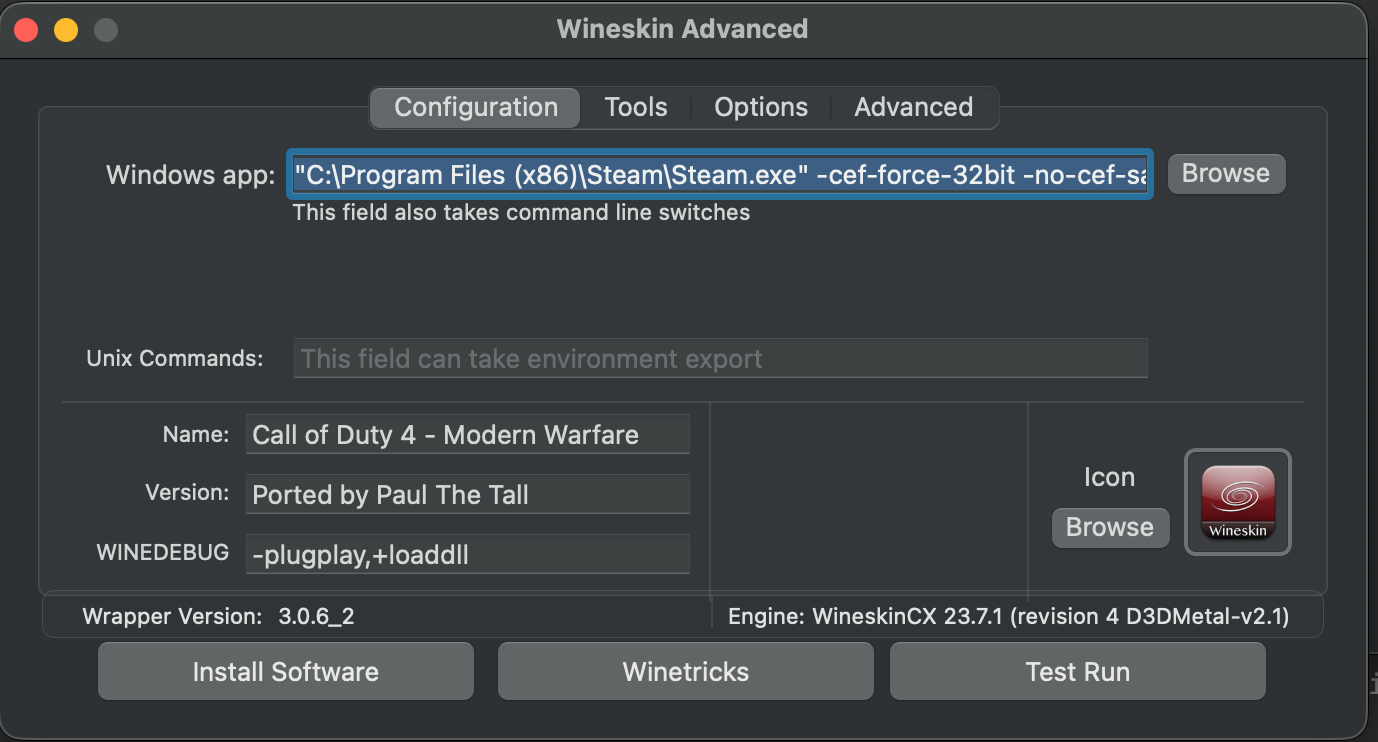
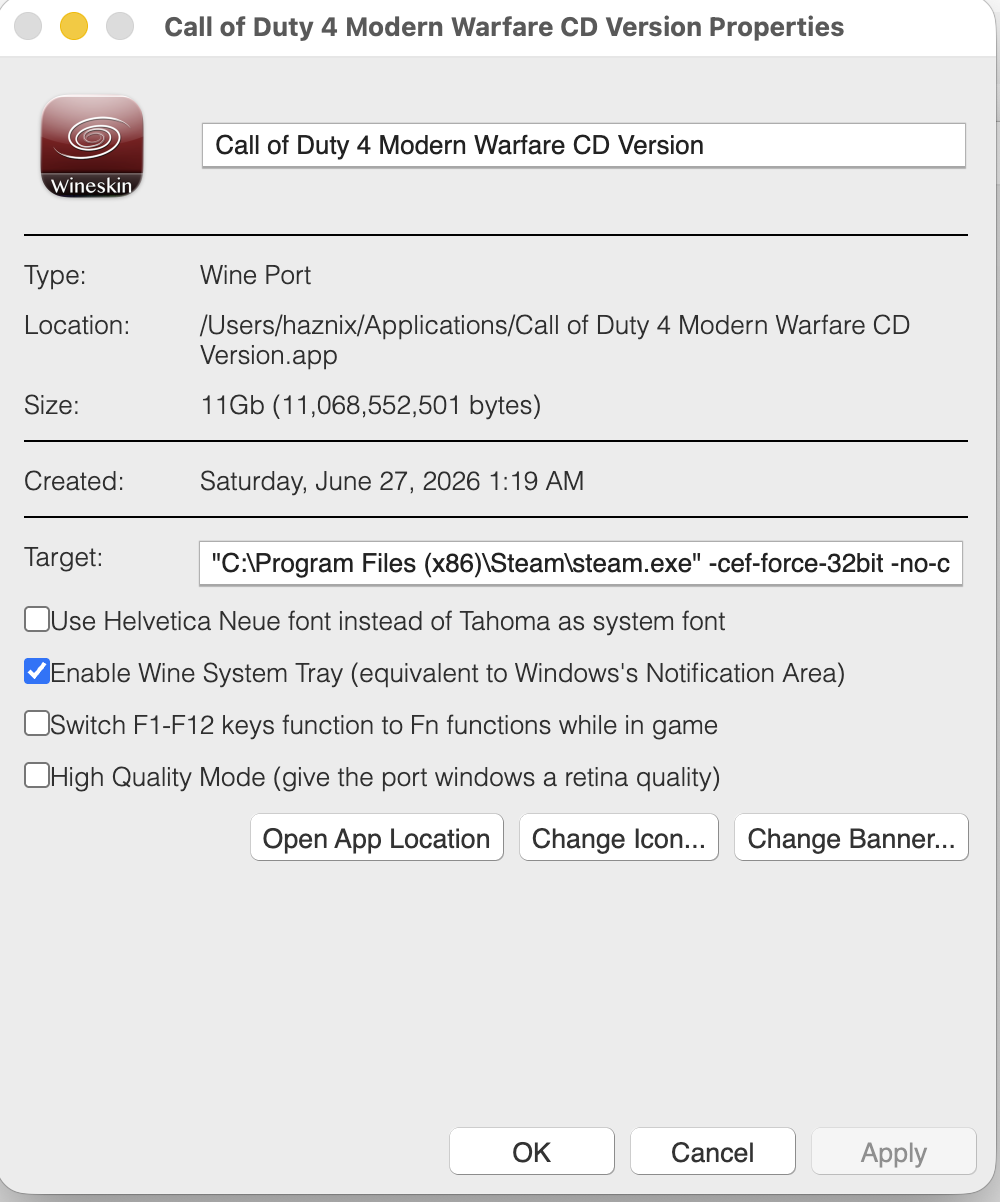
 Call of Duty 4 + CoD4x on Apple Silicon using Porting Kit I spent a good 3 days sorting this out for the most optimal combination. There are a few different ways you can play this aging game on Apple Silicon. It becomes challenging given that Apple has discontinued 32-bit app support. What I have here is a fully tested setup for playing Call of Duty 4 - Modern Warfare with the CoD4x client on Apple Silicon with up to 125+ FPS. This works for both CD/retail owners and Steam owners. The base-game install differs slightly between the two, but everything from the CoD4x client onward is identical. I used AI to create the steps following my experiments and then I revised the notes. Tested on: M2 Pro/M5 Max, macOS (Tahoe), Porting Kit + WineskinCX64 23.7.1 (revision 4, D3DMetal-v2.1). TL;DR : why this is finicky and what to do Three separate problems get tangled together: Graphics engine. COD4 MW is a 32-bit Direct3D 9 game. The engine you pick has to accelerate D3D9 specifically. D3DMetal does. DXMT and DXVK/d9vk do not. Steam has to be running for servers that have Steam auth enabled, applies to CD version of the game too. Steam's webhelper crashes with HW acceleration D3DMetal on Apple Silicon when run with Win 10 compatibility, set it to Windows 7 in Wine Config Utility under Applications tab. Performance is CPU-bound. A 2007 game can't tax an M-series GPU. The limiter is the translation layer on the CPU, and Steam sitting on the performance cores steals your frames. This can be addressed by demoting Steam to the efficiency cores. Part 1 — Build a CLEAN wrapper In Porting Kit, select the stock Call of Duty 4 port, then Install with extra options. For the engine, choose the CX64Bit D3DMetal option (it will show as WineskinCX 23.7.1 D3DMetal-v2.1, see picture below). Set the wrapper's Windows version to Windows 10 at creation. This is the version the game will run under, and it's fine for the game. Select Mac Driver and Steam in dependencies Part 2 — Install the base game & Steam CD / retail owners: Install from the disc by mounting an ISO, then right click on Setup.exe and choose Open With Porting Kit. OR Copy your existing game files into the wrapper's drive_c/Program Files (x86)/Activision/Call of Duty 4 - Modern Warfare/). Apply the official 1.7 patch if your copy isn't already at that level. Steam owners: Since we selected a D3DMetal engine Steam will not automatically install due to inherent incompatibility. Download Steam for Windows from their website. Then right click on the exe in your macOS Finder window and select Open With "Porting Kit". This will install Steam, and try to run it and most likely will result in a crash, look at Step 3 for more details. Install COD4 MW through Steam into this wrapper once you've followed the procedure in Step 3. Part 3 — Install Steam into the SAME wrapper Steam must live in the same wrapper/prefix as iw3mp.exe. A separate Steam bottle will not authenticate the game. 3a. Set the Windows version BEFORE first login Use a per-application override so you can make Steam happy without disturbing the game: Open winecfg → Applications tab → Add application → select steam.exe. With steam.exe selected, set its Windows version to Windows 7. 3b. Add the CEF launch flags (this stops the webhelper crash) The webhelper crash on Apple Silicon is a known 64-bit CEF bug under Wine. Steam's own "disable hardware acceleration" toggle does not fix it. Forcing the 32-bit webhelper does. Set Steam's launch arguments to: -cef-force-32bit -no-cef-sandbox -cef-single-process -cef-in-process-gpu -cef-disable-d3d11 -cef-disable-breakpad -nofriendsui -nofasthtml (In Porting Kit/CrossOver, set these as the arguments on the Steam launcher) 3c. Quiet Steam down In Steam settings, once logged in: Interface / Downloads: turn off "allow downloads during gameplay" and automatic game updates. Cloud: disable Steam Cloud. In Game: disable the Steam Overlay (it hooks the game's frame-present call and adds per-frame overhead under D3DMetal — a classic stutter source). Low Performance Mode: enable it. With the 32-bit webhelper forced, leaving web-view GPU acceleration on plus Low Performance Mode was stable in testing and reduced overhead. If you still get instability, try turning web-view GPU acceleration off — it's the one knob to flip if the webhelper is still unhappy. Part 4 — The performance unlock: demote Steam to the efficiency cores This is what takes you from a jittery 40–120 to a solid 125+FPS. Why: the game is CPU/translation-bound, so any process competing for CPU steals frames directly — that's why FPS dips even when you're staring at a wall (the wall is trivial for the GPU; the dip is Steam spiking on the CPU). macOS doesn't let you hard-pin processes to cores, but it does place work on P-cores vs E-cores by QoS class. Demote Steam's webhelper to background QoS and the scheduler parks it on the E-cores, freeing the P-cores for the game. The tool is taskpolicy. Do it after Steam is up and logged in. The script below watches for the webhelper processes and demotes them automatically (they spawn several and can respawn, so a one-shot command misses some). Important: it targets only steamwebhelper. It does not touch steam.exe, iw3mp.exe, or the shared wineserver — throttling the wineserver would slow the game too, since they share it. The watcher script Save as cod4-steam-qos.sh: #!/bin/bash # # cod4-steam-qos.sh # Keeps Steam's webhelper processes demoted to background QoS so the # macOS scheduler parks them on the efficiency (E) cores, leaving the # performance (P) cores free for the game (iw3mp.exe under D3DMetal). # # Only targets processes whose command line contains "steamwebhelper". # Does NOT touch steam.exe, iw3mp.exe, or the shared wineserver. # # Usage: # 1. Launch Steam (through your Wine wrapper) and let it log in. # 2. In Terminal: sudo bash cod4-steam-qos.sh # 3. Leave it running while you play. Ctrl-C to stop. set -u PATTERN="steamwebhelper" # matched against the FULL command line INTERVAL=5 # seconds between re-scans if [ "$(id -u)" -ne 0 ]; then echo "Please run with sudo: sudo $0" >&2 exit 1 fi seen=" " count=0 cleanup() { echo echo "[cod4-qos] stopped. Demoted processes stay on the E-cores until Steam restarts." exit 0 } trap cleanup INT TERM echo "[cod4-qos] watching for '$PATTERN' every ${INTERVAL}s (Ctrl-C to stop)…" while true; do # -i = case-insensitive, -f = match the full argument list. # Wine names each process after its loader, so the real .exe name only # appears in the arguments — -f is what makes this match at all. for pid in $(pgrep -if "$PATTERN"); do taskpolicy -b -p "$pid" 2>/dev/null # idempotent; safe to re-apply case "$seen" in *" $pid "*) : ;; *) seen="$seen$pid " count=$((count + 1)) echo "[cod4-qos] demoted PID $pid (total this session: $count)" ;; esac done sleep "$INTERVAL" done Run it (in the normal macOS Terminal: sudo bash cod4-steam-qos.sh Confirm it's working in Activity Monitor → Window → CPU History — you'll see Steam's load move onto the E-cores. PIDs reset each session, so run the script each time you play (or adapt it into a launch agent if you want it permanent). Runs under sudo so taskpolicy never stops to ask for a password mid-loop. Part 5 — In-game settings Resolution: native/fit-to-screen is fine — you're not GPU-bound, so resolution barely moves the needle. If you're on a Retina wrapper, check the Retina Mode toggle; with it on, your chosen resolution may actually render at 2× (4× the pixels) under the hood. This will be in Properties for the port, keep it unchecked. Framerate cap: CoD4 is idTech3, so com_maxfps is tied to jump physics. The canonical competitive values are 125 and 250. Open console (~) and set: /com_maxfps 125 /cg_drawfps 1 A cap you can hold steadily feels far better than a higher one that swings, because input and jump physics are framerate-linked. If you can't sustain 125 with Steam running, lock to a value you can. Part 6 — Play session order of operations Launch Steam through the wrapper (Win7 per-app override + CEF flags). Let it log in. Minimize it. Run the QoS script: sudo bash cod4-steam-qos.sh. Launch the game. You can launch through Steam, or launch iw3mp.exe directly with Steam idling in the background — the auth server only needs Steam alive, not the launcher path. Connect to your Steam-auth CoD4x server. Do not close Steam. The server re-validates continuously via Steamworks; kill Steam and you get dropped. Minimized + demoted is the sweet spot: present enough to auth, quiet enough to stay off your frame budget. Troubleshooting FPS is low / stuck at the non-accelerated level. Confirm the QoS demotion actually ran (CPU History window). FPS swings wildly while staring at a wall. That's Steam spiking on the P-cores. Run the QoS script; disable the overlay and background downloads. Steam crashes on launch. Make sure the CEF flags are actually applied, set steam.exe to Win7 per-app, and verify you didn't change the Windows version after installing Steam. Steam worked, then broke after "Updating Steam". A version/OS change re-bootstrapped it. Relaunch with flags; if needed, rebuild the Steam side and don't touch the OS version afterward. Graphics look wrong / glitchy. You almost certainly have leftover DXVK/d9vk overrides from a different engine, create a new wrapper. Can't join auth servers. Steam must be running, logged in, and in the same wrapper as the game. Installing COD4: /connect 74.91.116.93:28960, it will auto install COD4x client for you upon connect. Trust the process. Why not DXMT, DXVK, or a Parallels VM? DXMT translates D3D10/11 only — it does nothing for a D3D9 game, so CoD4 falls back to the slow path. DXVK/d9vk on Mac is D3D9 → Vulkan → MoltenVK → Metal (extra layers), and its D3D9 component is deprecated. Slower than D3DMetal here, and it fights D3DMetal for the D3D9 path. Parallels + Linux guest — no true GPU acceleration and you'd stack even more translation. Skip. Parallels + Windows 11 ARM guest — actually viable (real Windows, real Steam, x86 emulation via Prism, Parallels' virtual GPU) and avoids the whole Wine/webhelper mess, but the virtual GPU caps framerate well below native D3DMetal. Good fallback if you don't want to tune; not the high-FPS path. Credits CoD4x team — client and docs (github.com/callofduty4x/cod4x-docs) NovaVeterans — Mac/CrossOver CoD4x walkthrough CodeWeavers community — the -cef-force-32bit webhelper fix Everyone in the macgaming / CoD4x community who documented pieces of this If this helped, drop your chip model + FPS results below so we can build a compatibility list. Please tag whomever does mac gaming. cc: @deadman @El_Terrible @YACCster