
MikelMahou
-
Posts
44 -
Joined
-
Last visited
-
Days Won
1 -
Donations
0.00 USD -
Points
411,150 [ Donate ]
Content Type
Profiles
Forums
Gallery
Twitch
Running Commentary
Events
Store
Downloads
Everything posted by MikelMahou
-
-
Actor Carlos Ray Norris, known professionally as Chuck Norris, died this Friday at the age of 86. He had been admitted to a hospital in Hawaii for emergency treatment. A true legend has gone, thanks for all the entertaiment and movis Chuck! RIP
-
Hello fellows!! Obviusly i love playing the Cod Waw, Cod Waw Freeze Tag and Cod 4 Modern Warfare and "sometimes" Cod modern versions like BO7 etc etc with you all .... BUT.......... how about these ones???? I do also look always and play and test several games, mostly based in Vietnam, or WWII, due most latest modern games are to me nothing except Stupid skins and weapons and equipment that are impossible in real life, or that lead me to spend more than 70% of my time adding and removing attachments from my weapon, equipment, or backpack, etc. (again, a total waste of time and realism), which in most cases only make me mentally disconnect from the game. I lose the immersion of a tactical shooter, and at that very moment, the game loses its meaning for me, which I suppose doesn't happen to me alone. Well, here's a selection of tactical, multiplayer games with some very good immersive and realistic mods, incredible maps, realistic gameplay dynamics, and team-based games where teamwork is paramount like never before. Rising Storm 2: Vietnam (my favorite) Great Inmersion and Gameplay https://www.youtube.com/watch?v=QdshgFa3C58 ARMA REFORGER VIETNAM MOD multiplayer: https://www.youtube.com/watch?v=WBrthZJUzzA https://www.youtube.com/watch?v=S8n_2caACWQ Ground Branch [Best for Hardcore Tactical Realism] CQB Style https://www.youtube.com/watch?v=Zh0M8NBvjns Hell Let Loose Vietnam https://www.youtube.com/watch?v=HdrP0jZTXvY Some vids about best games Tactical Shooters in 2026 https://www.youtube.com/watch?v=7aNn2NuNlsA How about play some of these awsome guys as team? Let me know what you think guys!!! Mikel
-
 Hi there. If your DVD do not works, will be interesting if the disc is damaged, is your wondows settings wich fails to open, or just something else. i am going to asume, your Windows is fine, and pc can run the game. Then, if your cd/dvd Cod Waw do not works, just can download a ISO file from any friends, (or send me a PM and i will help you putting the iso file in a private website ftp server for you, also i can upload for you and anyone the patched 1.7 version already in ISO file or completed installed game from me) Once downloaded the iso file, just mount it, with any windows tool by deafault or just use Daemon Tools etc, then install game normally and update the patchs for game at 1.7v. Then, just try get some good aim, a beer and something to smoking and you are done, ENJOY!!!! Mikel
 -
Dear Rob! Yhanks for the offert in trenchcoats,m tht will be some i would be interested if you have some models like this: Then i will be able to get complete immersion at COd Waw gameplays, lol! And of course i am totaly open mind about sex in public places,. (NO,,, is not an offert for you ROB) and better public restrooms etc. Maybe even i will support that with some dollars, send me a paypal for that!! Respect Atary and other systems, i was the happiest boy in world when i put my hands over the frist models of Spectrum 16 and 48k..awsome personal computers for 1982. Since that one, i moved to Bull Micral pc 276 in 1987 and so on unmtil today newest AMD chips (yes, i think AMD is way ahead Intel in gamming and processing task graphics related) So, lets say, yes, you have a new friend if you wanted! About Being a Great Idiot (i think you mean as member of this Great Idiots Club, excuse me but due some years behind experiences in other clan, pretty sure someone like Easssie can tell you some version of that, lol! i was not in the mood for a new clan, until now, i rec ently joined at AGX Members Club, and really happy where i am) But this is another history........ lol! Take care! Mikel
-
Well. i did my first programas and stuff in a Spectrum 16k Sinclair system (one the first homw computers) when i was about 9-10 years old, i was worn in 1971 so you can imagine this Spectrum it was not like PC from today. Lol! Operative System was Basic, Sometimes some Cobol. This was my Speccy (Spectrum 16k and 48K) first model: https://es.wikipedia.org/wiki/Sinclair_ZX_Spectrum So....iamgine how many time doing complete nights to make a single basic program!! lol!
-
Hi Rob. Respect your asking........ No way to solve or way to help you and your "imaginary" friend.... except this: https://www.nhs.uk/mental-health/social-care-and-your-rights/how-to-access-mental-health-services/ Greetings! Mikel
-
Hi J3st3r! Yeah, is and old game, but tech and tweaks commands here exposed are not only for the Cod Waw game, (except for THOSE whom really runs the game in "Old Potatoes") Or cause they need some fixes for some troubles trought their windows installs or fails. Also are a bunch of real good stuff to get your windows install clean, safe and up and running as must be (if the Windows Microsoft Team knew how to do your job properly, which is not the case, as seen in the ridiculous errors and problems that recent Windows versions cause, especially in gaming, right?) So this is just my 2cnts to help people, and of course, you may play the game as it is, (your option) but for many people this can help to get a better game experience. That is was this it was posted. Greetings Mikel
-
Hi IceQueen! Nice you have solve the trouble! If other things happens again, you know will be around! Thats sounds good! See you in Battle!! Mikel
-
Hello! Due another post, and due i think this is going to be useful for many people here it goes some tweaks and tricks you can start to check and do in your windows install and game (in this case i used the COd Waw game, but is apply to other games too) Here it goes: Level Windows System Checks: ITENGRITY CHECK SYSTEM AND REPAIRT ONLINE SYSTEM CHECK WINDOWS sfc /scannow DISM /Online /Cleanup-Image /CheckHealth DISM.exe /Online /Cleanup-image /Scanhealth DISM.exe /Online /Cleanup-image /Restorehealth Dism.exe /Online /Cleanup-Image /startComponentCleanup CHKDSK Power<Shell Repair-WindowsImage -online -CheckHealth Repair-WindowsImage -online -ScanHealth ENABLE THE DISK FAST DRIVER IN WINDOWS 11 FOR FASTEST READ AND WRITE SSD DISK AND M.2 SSD DRIVES Enabling the new Windows 11 NVMe driver requires you to be on Windows 11 25H2. As well, you'll need to check the Driver details section of your storage drive in the Windows 11 Device Manager and make sure that your drive is using StorNVMe.sys. Otherwise, enabling this driver won't do anything for your system, as it will continue to use the vendor-provided driver for your SSD. To enable it, you have two options. The first uses the Registry Editor, and the second uses PowerShell or Command Prompt with administrative privileges. To add using the Registry Editor: Press Windows key and R, then type "regedit" Navigate to Computer\HKEY_LOCAL_MACHINE\SYSTEM\CurrentControlSet\Policies\Microsoft\FeatureManagement\Overrides Add the following REG_DWORD type values in this folder, each with a hexadecimal value of "1": 156965516 1853569164 735209102 Reboot Alternatively, you can open an elevated terminal and run the following commands: reg add HKEY_LOCAL_MACHINE\SYSTEM\CurrentControlSet\Policies\Microsoft\FeatureManagement\Overrides /v 156965516 /t REG_DWORD /d 1 /f reg add HKEY_LOCAL_MACHINE\SYSTEM\CurrentControlSet\Policies\Microsoft\FeatureManagement\Overrides /v 1853569164 /t REG_DWORD /d 1 /f reg add HKEY_LOCAL_MACHINE\SYSTEM\CurrentControlSet\Policies\Microsoft\FeatureManagement\Overrides /v 735209102 /t REG_DWORD /d 1 /f Reboot This will then enable the new NVMe driver. If you have any issues, you can open the Registry Editor, navigate to that folder, and delete the three values that were added. Once you've rebooted, it'll be disabled again, and you'll be using StorNVMe. Optimze Ram Windows: Open a Power Shell terminal as admin Then Type This: Enable-MMAgent -mc (this enable the cmd command) Then Type get-MMAgent You Will see this on your CMD console: ApplicationLaunchPrefetching : True ApplicationPreLaunch : True MaxOperationAPIFiles : 512 MemoryCompression : True (if this shows True, is Active) OperationAPI : True PageCombining : False PSComputerName : Type This as admin to deactivate the sevice and cmd command: Disable-MMAgent -mc (to Deactivate Memory Compression) Check result in CDM Screen doing again: get-MMAgent Then MemoryCompression False (then is correct) Close and restart PC Done!! Level Game Tweaks Mode:: Most Important cmd to have in game (in console set up or in cfg write your own) In Graphic Settings in Game set up: Antialising 2x (is better than 4x) quicker AND BETTER OFF!!! Vertical Synch Always OFF (except you wanna have more input lag) Lol! Anisotropic Filter at Max All Textures at MAX And your normal settings fo rest. Comands that help the game to be more consistent in hit boxes, ping etc. (better aim and better impacts) seta com_hunkmegs (number must be half of your ram memory) seta r_multigpu 1 (improves rendering of graphics) seta r_gpusync 2 (agreesive mode) this improves mouse answer to clicks etc seta r_gpuSync "agressive" Seta com_maxfps xxx (here number 2 chances, or set it up to 250 fps or your fps hz from monitor refresh rate, the better this last) seta cl_maxpackets 100 (ifping is good if is some high is better set it up to 60 even 30) depends how high is ping under 100 ping better is 100. seta cl_packetdup 0 (if ping is good is is over 60 better is set to 1 or even 2) seta cg_drawLagometer "1" (this activate lagometer in screen to see if you have lag or conexion issues always set to 1 to see to hide set to 0) seta cg_drawfps "1" (to see fps on screen as playing.) seta snaps 30 (better improvement between you see in screen and what happens in server side) Impacts hit boxes etc Some useful Binds i have: For set fps to my monitor refresh or set them to 250 in one key (look packets always are related same) bind F5 "toggle com_maxfps 144 250;toggle cl_maxpackets 100 100" bind F6 "toggle cl_packetdup 0 1 2" bind F7 "toggle cg_fov 65 70 75 80" (this is for fov, some maps is better change fov to minor values to see better) this change values in one key bind F "openScriptMenu modkeybind cyclefpslag" Sniper bind bind F4 "+speed_throw; +holdbreath" (this bind hold the breath and the stabilizer from sniper at same time) One key use to both at same time. Bind to minimize game to a window and dont hang game never (you can use your own resolutions for that) seta r_mode "2560x1440" (this is my game resolution to play) Take in count that you will need 2 different resolutions to this works fine. One for the desktop noraml resolution (in my case is 3840x2160) and the game as i told is (2560x1440) that allows use the bind to minimize the screen ingame.(cause the game resolution is lower than the desktop) Look for that carefully- bind p "vstr fullscreensss;" (when i press P key minimize to a window in ay i can make some things at same tgime as i play) if pressed again P come back to full screen) seta fullscreen0 "r_fullscreen 0;vid_restart; set fullscreensss vstr fullscreen1; Say ^1r_fullscreen 0 " seta fullscreen1 "r_fullscreen 1;vid_restart; set fullscreensss vstr fullscreen0; Say ^1r_fullscreen 1 " seta fullscreensss "vstr fullscreen0" seta r_fullscreen "1" seta r_fullscreensss "0" Some Improvements in how Grpahics Card rReaction to changes in specs for games and Delays Times. (sometimes you got crash random in some games, Cod Waw, probably is one of those. This set up in register of windows helps to evite them) Navigate to - H_KEY_LOCAL_MACHINE \ System \ CurrentControlSet \ Control \ Graphics Drivers. Right click on the open field and click on New / DWORD (32bit) Value, Then name it: TdrDelay -> double click it -> Set the value to 8. and here some more info if you wann know more: How To Improve Hit Detection in Call of Duty (WAW version) Call of Duty is known for pretty bad hit detection all across the board. Thankfully, there are ways to improve hit detection and registration in many of the classic titles. I hope this guide helps you to enhance your COD:WAW experience. =>Step 1: Pay for the best ISP in your area<= Well, this seems obvious huh? If bad comes to worse...you could always move to Chattanooga. =>Step 2: Play on a Wired connection<= Wi-Fi is just too unreliable for online games. Trust me. =>Step 3: Remove your Wireless LAN card<= This one is less obvious. If you have a WLAN card and you're on Wired, it seems to introduce lag just from being installed. Just remove the card and put it in a safe place. =>Step 4: Optimize your MTU size<= Your packets might be getting fragmented, causing poor hitreg. Follow this guide here to see if you're getting fragmentation and how you can fix it.[www.dcgaming.org] =>Step 5: Optimize your data transfer rates*<= Time to optimize the game itself. Turn on the console from the in-game options and input the following: /rate 25000 - The rate you send data, measured in bytes per second /snaps 30 - The amount of times the server updates itself, similar to "ticks" /cl_packetdup 0 - Duplicates packets sent out to combat packet loss (turned off) /com_maxfps 100 - The max FPS allowed client-side, affects in-game physics /cl_maxpackets 100 - The maximum CMD packets sent to the server a second =>Step 6: Ensure you have the best in-game FPS<= The Quake 3 engine has total synergy between FPS and CMD packets sent. If you cannot manage a solid 100FPS at all times, either lower your settings, or download a high FPS config if bad comes to worse. Monitor Settings Fps and Refresh Rate Related Monitors with More than 100mhz Refresh Rates Monitor refresh rate has a direct influence in your fps framerates and smoothing game. How must be setting? 1-Resfresh Rate and Fps limit has be paired to same that monitor can hold without lowering or fluctuating fps. Guess you have a Monitor wich resfresh rate is 144 or 165mhz, then you will have the vertical synch option to be enabled, wich makes a lot of difference if is activated when you shoot or aim a target ingame, so active this setting in game and in your windows settings too. In this case set up your fps limit to the same if your pc canhandle without variations. But, remember that maxpackets are limited to 100 for the game engine, wich means, that best compromise solution for hit detection is paired to the same 1oo fps limit. Why? cause maxpackets are going to mark the point which you can ot update with your resfresh rate monitor, so all those more fps you theorically gain is not real. So best settings for those who has high refresh rate monitors up to 144 or 165 or even better is: In Cfg Or in console ingame Options: Rate 25000 seta com_maxfps 100 cl_maxpackets 100 cl_packetdup 0 snaps 30 In game Settings Menu Options: Vertical Synch Enabled in game settings and windows settings Texture Filtering Trilinear ON All textures to MAX Enable Anisotropic Filter ON (all right side bar move all the way) Screen Refresh Rate (here set up max your monitor has allowed) 60-144-165-240 etc Aspect Ratio Auto (recommended) Synch Every Frame Yes Antialising 4x Dual Video Cards Yes Shadows Yes Specular Map Yes Ocean Simulation Yes Dynamic Foliage Yes Bullet Impact Yes 2-Monitors 60mz Refresh Rates Settings Old Video Cards In this case yur best Option is go for these settings: In Cfg Or in console ingame Options: Rate 25000 Cl_maxpackets 60-100 (related to your fps limit) Recomended 100 Seta com_maxfps 60 to 120 (always in this relation 60-70-80-90-100-110-120) Recommended 90 Cl_packetdup 0-1-2-3-4-5 (look your framerates and see if has some variations then apply the related set for it) Recomended: Cl_packetdup 2 In game Settings Menu Options: Vertical Synch DISABLED settings and windows settings Texture Filtering Trilinear ON All textures to MAX Enable Anisotropic Filter ON (all right side bar move all the way) Aspect Ratio Auto (recommended) Synch Every Frame NO Antialising OFF Dual Video Cards Yes Shadows Yes Specular Map OFF Ocean Simulation OFF Dynamic Foliage Yes Bullet Impact Yes Mouse Related Is true that new mouses get awsome DPI max sets and a lot of new improvements. But... Really is good to play FPS like COD? The answer can be controversial, but at the end, the real truth is Pro Players and Old School gamers know that high DPI setttings in your mouse made your aim worst! Amazing ah? Well, there is a logical behind this but it will too long to explain (search in google about it) So, what DPI i have to do with my amazing super mouse last gen that gets more than 6000 DPI? The correct range will be 600-800-1000 DPI setting for play smooth and get a better aim when you play.(Pro Players and competitive players set it up in 800 DPI allways) This DPI range offers better aim cause yout move with the mouse aim tracks are less faulty in stops over targets and when you correcting the tracking over a target in movement. Obviusly in windows settings for mous the sets has to be paired, so let the mouse accl off and the speed to medium. Same in game option. Mouse speed must be paired without mouse acceleration OFF in game settings. Why? cause again, the Quake Engine do his magic and you will notice and have a better and smooth aim, tracking and better sweet spot to make your aim progress. So its on you try and compare or just ignore these wise advices. Good luck, and have fun. *A Technical Explanation Let's compare the default settings to the improved settings, shall we? Default: /rate 25000 /snaps 20 /cl_packetdup 1 /com_maxfps 85 /cl_maxpackets 30 Optimized: /rate 25000 /snaps 30 /cl_packetdup 0 /com_maxfps 100 /cl_maxpackets 100 The default Rate sends 25kbps, as fast as IW capped the Q3 engine setting. Most servers are set to sv_fps 20. The game readjusts itself if /snaps is set higher. This is a precaution for any servers that do have sv_fps set to 30. Packet duplication only wastes bandwidth unless you really do have that bad of a connection. The Q3 engine only takes FPS caps equal to 1000/x. As such, 85 gets rounded up to 91 (1000/11). /cl_maxpackets must be set to a number that is equal to the maxfps/x. As the default is 91, this is what happens: 91/1 = 91 91/2 = ~46 91/3 = ~31 91/4 = ~23 You only send ~23 packets a second on every fourth frame! Something About Memory and Ram The windows suite has some controllers to allocate memory or do a MemoryCompression for this. For games is not the best option. So to improve this use this tooL: Open your PowerShell as administrator. Write this:get-MMAgent When the command works you will see this: ApplicationLaunchPrefetching : True ApplicationPreLaunch : True MaxOperationAPIFiles : 512 MemoryCompression : True (this line is what matters) OperationAPI : True PageCombining : False/True (this no matter) PSComputerName : To change this in same PowerShell as administaartor write this: disable-MMAgent -mc This is going put memory as not compressed Then you will see the line: MemoryCompression : False (this is what we want) Then restart PC. This going to improve your memory process for games and video etc. Using the MSI tool MSI_util_v3 (is the name of app you can search google or go here: and read and download the tool for your use. Basically is a tweak for graphics cards and the way the response and get the instructions of commands in games etc. Using it you will see a better perfomance in games and some hard task like video edition etc. Drivers AMD Community https://www.amernimezone.com/#features https://www.amernimezone.com/#download These drivers improves the capabilities of offcial drivers and much more for AMD users. Are under AMD license and offers some tools added to make your drivers get their hot spot with some tools and big improvements in stability and perfomance. Read carefully instructions before doenload and follow steps one by one for cleans installs. Level DNS realease and Free DNS:: Open A CMD terminal as Admin Type: ipconfig /flushdns (this clear dns and ips and forcé system get the most recent ip and dns caches) ipconfig /reléase (this starts to reléase your current ip) ipconfig /renew (this renew you ip) ipconfig /displaydns (to see the current DNS and Cache) and finally type again: ipconfig /flushdns Close Cmd and restart PC Level Clear Nvidia Cache Graphics Card: Steps to clear the NVIDIA cache (Manual Method): Close games: Make sure there are no active NVIDIA games. Open Folders: Press Windows + R and type %localappdata%. Locate files: Go to the NVIDIA folder and delete the contents of the following folders: DXCache GLCache NV_Cache Restart: Restart your PC so that NVIDIA can rebuild the cache with new data. Level Latency Game Reduce:; How to SIGNIFICANTLY Reduce Your System Latency for Gaming (KERNEL TWEAKS) (ADVANCED). here are the tweaks if you want to copy bcdedit /set useplatformclock no bcdedit /set useplatformtick no bcdedit /set disabledynamictick yes reg add "HKLM\SYSTEM\CurrentControlSet\Control\Session Manager\kernel" /v GlobalTimerResolutionRequests /t REG_DWORD /d 1 /f And this is all i know that can help to get a better game and better smooth plays at game. (Cod WAW) But also worls for a better pc settings in overall mode... That is all, hope this is fine yfor people! Mikel
-
Hi! Thats shows problem is not your ISP or internet cable or even your pc LAN drivers etc. If that is correct, the onky thing you can do right now, is check this too: Level Windows System Checks: ITENGRITY CHECK SYSTEM AND REPAIRT ONLINE SYSTEM CHECK WINDOWS sfc /scannow DISM /Online /Cleanup-Image /CheckHealth DISM.exe /Online /Cleanup-image /Scanhealth DISM.exe /Online /Cleanup-image /Restorehealth Dism.exe /Online /Cleanup-Image /startComponentCleanup CHKDSK Power<Shell Repair-WindowsImage -online -CheckHealth Repair-WindowsImage -online -ScanHealth ENABLE THE DISK FAST DRIVER IN WINDOWS 11 FOR FASTEST READ AND WRITE SSD DISK AND M.2 SSD DRIVES Enabling the new Windows 11 NVMe driver requires you to be on Windows 11 25H2. As well, you'll need to check the Driver details section of your storage drive in the Windows 11 Device Manager and make sure that your drive is using StorNVMe.sys. Otherwise, enabling this driver won't do anything for your system, as it will continue to use the vendor-provided driver for your SSD. To enable it, you have two options. The first uses the Registry Editor, and the second uses PowerShell or Command Prompt with administrative privileges. To add using the Registry Editor: Press Windows key and R, then type "regedit" Navigate to Computer\HKEY_LOCAL_MACHINE\SYSTEM\CurrentControlSet\Policies\Microsoft\FeatureManagement\Overrides Add the following REG_DWORD type values in this folder, each with a hexadecimal value of "1": 156965516 1853569164 735209102 Reboot Alternatively, you can open an elevated terminal and run the following commands: reg add HKEY_LOCAL_MACHINE\SYSTEM\CurrentControlSet\Policies\Microsoft\FeatureManagement\Overrides /v 156965516 /t REG_DWORD /d 1 /f reg add HKEY_LOCAL_MACHINE\SYSTEM\CurrentControlSet\Policies\Microsoft\FeatureManagement\Overrides /v 1853569164 /t REG_DWORD /d 1 /f reg add HKEY_LOCAL_MACHINE\SYSTEM\CurrentControlSet\Policies\Microsoft\FeatureManagement\Overrides /v 735209102 /t REG_DWORD /d 1 /f Reboot This will then enable the new NVMe driver. If you have any issues, you can open the Registry Editor, navigate to that folder, and delete the three values that were added. Once you've rebooted, it'll be disabled again, and you'll be using StorNVMe. Optimze Ram Windows: Open a Power Shell terminal as admin Then Type This: Enable-MMAgent -mc (this enable the cmd command) Then Type get-MMAgent You Will see this on your CMD console: ApplicationLaunchPrefetching : True ApplicationPreLaunch : True MaxOperationAPIFiles : 512 MemoryCompression : True (if this shows True, is Active) OperationAPI : True PageCombining : False PSComputerName : Type This as admin to deactivate the sevice and cmd command: Disable-MMAgent -mc (to Deactivate Memory Compression) Check result in CDM Screen doing again: get-MMAgent Then MemoryCompression False (then is correct) Close and restart PC Done!! Level Game Tweaks Mode:: Most Important cmd to have in game (in console set up or in cfg write your own) In Graphic Settings in Game set up: Antialising 2x (is better than 4x) quicker AND BETTER OFF!!! Vertical Synch Always OFF (except you wanna have more input lag) Lol! Anisotropic Filter at Max All Textures at MAX And your normal settings fo rest. Comands that help the game to be more consistent in hit boxes, ping etc. (better aim and better impacts) seta com_hunkmegs (number must be half of your ram memory) seta r_multigpu 1 (improves rendering of graphics) seta r_gpusync 2 (agreesive mode) this improves mouse answer to clicks etc seta r_gpuSync "agressive" Seta com_maxfps xxx (here number 2 chances, or set it up to 250 fps or your fps hz from monitor refresh rate, the better this last) seta cl_maxpackets 100 (ifping is good if is some high is better set it up to 60 even 30) depends how high is ping under 100 ping better is 100. seta cl_packetdup 0 (if ping is good is is over 60 better is set to 1 or even 2) seta cg_drawLagometer "1" (this activate lagometer in screen to see if you have lag or conexion issues always set to 1 to see to hide set to 0) seta cg_drawfps "1" (to see fps on screen as playing.) seta snaps 30 (better improvement between you see in screen and what happens in server side) Impacts hit boxes etc Some useful Binds i have: For set fps to my monitor refresh or set them to 250 in one key (look packets always are related same) bind F5 "toggle com_maxfps 144 250;toggle cl_maxpackets 100 100" bind F6 "toggle cl_packetdup 0 1 2" bind F7 "toggle cg_fov 65 70 75 80" (this is for fov, some maps is better change fov to minor values to see better) this change values in one key bind F "openScriptMenu modkeybind cyclefpslag" Sniper bind bind F4 "+speed_throw; +holdbreath" (this bind hold the breath and the stabilizer from sniper at same time) One key use to both at same time. Bind to minimize game to a window and dont hang game never (you can use your own resolutions for that) seta r_mode "2560x1440" (this is my game resolution to play) Take in count that you will need 2 different resolutions to this works fine. One for the desktop noraml resolution (in my case is 3840x2160) and the game as i told is (2560x1440) that allows use the bind to minimize the screen ingame.(cause the game resolution is lower than the desktop) Look for that carefully- bind p "vstr fullscreensss;" (when i press P key minimize to a window in ay i can make some things at same tgime as i play) if pressed again P come back to full screen) seta fullscreen0 "r_fullscreen 0;vid_restart; set fullscreensss vstr fullscreen1; Say ^1r_fullscreen 0 " seta fullscreen1 "r_fullscreen 1;vid_restart; set fullscreensss vstr fullscreen0; Say ^1r_fullscreen 1 " seta fullscreensss "vstr fullscreen0" seta r_fullscreen "1" seta r_fullscreensss "0" Some Improvements in how Grpahics Card rReaction to changes in specs for games and Delays Times. (sometimes you got crash random in some games, Cod Waw, probably is one of those. This set up in register of windows helps to evite them) Navigate to - H_KEY_LOCAL_MACHINE \ System \ CurrentControlSet \ Control \ Graphics Drivers. Right click on the open field and click on New / DWORD (32bit) Value, Then name it: TdrDelay -> double click it -> Set the value to 8. and here some more info if you wann know more: How To Improve Hit Detection in Call of Duty (WAW version) Call of Duty is known for pretty bad hit detection all across the board. Thankfully, there are ways to improve hit detection and registration in many of the classic titles. I hope this guide helps you to enhance your COD:WAW experience. =>Step 1: Pay for the best ISP in your area<= Well, this seems obvious huh? If bad comes to worse...you could always move to Chattanooga. =>Step 2: Play on a Wired connection<= Wi-Fi is just too unreliable for online games. Trust me. =>Step 3: Remove your Wireless LAN card<= This one is less obvious. If you have a WLAN card and you're on Wired, it seems to introduce lag just from being installed. Just remove the card and put it in a safe place. =>Step 4: Optimize your MTU size<= Your packets might be getting fragmented, causing poor hitreg. Follow this guide here to see if you're getting fragmentation and how you can fix it.[www.dcgaming.org] =>Step 5: Optimize your data transfer rates*<= Time to optimize the game itself. Turn on the console from the in-game options and input the following: /rate 25000 - The rate you send data, measured in bytes per second /snaps 30 - The amount of times the server updates itself, similar to "ticks" /cl_packetdup 0 - Duplicates packets sent out to combat packet loss (turned off) /com_maxfps 100 - The max FPS allowed client-side, affects in-game physics /cl_maxpackets 100 - The maximum CMD packets sent to the server a second =>Step 6: Ensure you have the best in-game FPS<= The Quake 3 engine has total synergy between FPS and CMD packets sent. If you cannot manage a solid 100FPS at all times, either lower your settings, or download a high FPS config if bad comes to worse. Monitor Settings Fps and Refresh Rate Related Monitors with More than 100mhz Refresh Rates Monitor refresh rate has a direct influence in your fps framerates and smoothing game. How must be setting? 1-Resfresh Rate and Fps limit has be paired to same that monitor can hold without lowering or fluctuating fps. Guess you have a Monitor wich resfresh rate is 144 or 165mhz, then you will have the vertical synch option to be enabled, wich makes a lot of difference if is activated when you shoot or aim a target ingame, so active this setting in game and in your windows settings too. In this case set up your fps limit to the same if your pc canhandle without variations. But, remember that maxpackets are limited to 100 for the game engine, wich means, that best compromise solution for hit detection is paired to the same 1oo fps limit. Why? cause maxpackets are going to mark the point which you can ot update with your resfresh rate monitor, so all those more fps you theorically gain is not real. So best settings for those who has high refresh rate monitors up to 144 or 165 or even better is: In Cfg Or in console ingame Options: Rate 25000 seta com_maxfps 100 cl_maxpackets 100 cl_packetdup 0 snaps 30 In game Settings Menu Options: Vertical Synch Enabled in game settings and windows settings Texture Filtering Trilinear ON All textures to MAX Enable Anisotropic Filter ON (all right side bar move all the way) Screen Refresh Rate (here set up max your monitor has allowed) 60-144-165-240 etc Aspect Ratio Auto (recommended) Synch Every Frame Yes Antialising 4x Dual Video Cards Yes Shadows Yes Specular Map Yes Ocean Simulation Yes Dynamic Foliage Yes Bullet Impact Yes 2-Monitors 60mz Refresh Rates Settings Old Video Cards In this case yur best Option is go for these settings: In Cfg Or in console ingame Options: Rate 25000 Cl_maxpackets 60-100 (related to your fps limit) Recomended 100 Seta com_maxfps 60 to 120 (always in this relation 60-70-80-90-100-110-120) Recommended 90 Cl_packetdup 0-1-2-3-4-5 (look your framerates and see if has some variations then apply the related set for it) Recomended: Cl_packetdup 2 In game Settings Menu Options: Vertical Synch DISABLED settings and windows settings Texture Filtering Trilinear ON All textures to MAX Enable Anisotropic Filter ON (all right side bar move all the way) Aspect Ratio Auto (recommended) Synch Every Frame NO Antialising OFF Dual Video Cards Yes Shadows Yes Specular Map OFF Ocean Simulation OFF Dynamic Foliage Yes Bullet Impact Yes Mouse Related Is true that new mouses get awsome DPI max sets and a lot of new improvements. But... Really is good to play FPS like COD? The answer can be controversial, but at the end, the real truth is Pro Players and Old School gamers know that high DPI setttings in your mouse made your aim worst! Amazing ah? Well, there is a logical behind this but it will too long to explain (search in google about it) So, what DPI i have to do with my amazing super mouse last gen that gets more than 6000 DPI? The correct range will be 600-800-1000 DPI setting for play smooth and get a better aim when you play.(Pro Players and competitive players set it up in 800 DPI allways) This DPI range offers better aim cause yout move with the mouse aim tracks are less faulty in stops over targets and when you correcting the tracking over a target in movement. Obviusly in windows settings for mous the sets has to be paired, so let the mouse accl off and the speed to medium. Same in game option. Mouse speed must be paired without mouse acceleration OFF in game settings. Why? cause again, the Quake Engine do his magic and you will notice and have a better and smooth aim, tracking and better sweet spot to make your aim progress. So its on you try and compare or just ignore these wise advices. Good luck, and have fun. *A Technical Explanation Let's compare the default settings to the improved settings, shall we? Default: /rate 25000 /snaps 20 /cl_packetdup 1 /com_maxfps 85 /cl_maxpackets 30 Optimized: /rate 25000 /snaps 30 /cl_packetdup 0 /com_maxfps 100 /cl_maxpackets 100 The default Rate sends 25kbps, as fast as IW capped the Q3 engine setting. Most servers are set to sv_fps 20. The game readjusts itself if /snaps is set higher. This is a precaution for any servers that do have sv_fps set to 30. Packet duplication only wastes bandwidth unless you really do have that bad of a connection. The Q3 engine only takes FPS caps equal to 1000/x. As such, 85 gets rounded up to 91 (1000/11). /cl_maxpackets must be set to a number that is equal to the maxfps/x. As the default is 91, this is what happens: 91/1 = 91 91/2 = ~46 91/3 = ~31 91/4 = ~23 You only send ~23 packets a second on every fourth frame! Something About Memory and Ram The windows suite has some controllers to allocate memory or do a MemoryCompression for this. For games is not the best option. So to improve this use this tooL: Open your PowerShell as administrator. Write this:get-MMAgent When the command works you will see this: ApplicationLaunchPrefetching : True ApplicationPreLaunch : True MaxOperationAPIFiles : 512 MemoryCompression : True (this line is what matters) OperationAPI : True PageCombining : False/True (this no matter) PSComputerName : To change this in same PowerShell as administaartor write this: disable-MMAgent -mc This is going put memory as not compressed Then you will see the line: MemoryCompression : False (this is what we want) Then restart PC. This going to improve your memory process for games and video etc. Using the MSI tool MSI_util_v3 (is the name of app you can search google or go here: https://forums.guru3d.com/threads/windows-line-based-vs-message-signaled-based-interrupts-msi-tool.378044/ and read and download the tool for your use. Basically is a tweak for graphics cards and the way the response and get the instructions of commands in games etc. Using it you will see a better perfomance in games and some hard task like video edition etc. Drivers AMD Community https://www.amernimezone.com/#features https://www.amernimezone.com/#download These drivers improves the capabilities of offcial drivers and much more for AMD users. Are under AMD license and offers some tools added to make your drivers get their hot spot with some tools and big improvements in stability and perfomance. Read carefully instructions before doenload and follow steps one by one for cleans installs. Level DNS realease and Free DNS:: Open A CMD terminal as Admin Type: ipconfig /flushdns (this clear dns and ips and forcé system get the most recent ip and dns caches) ipconfig /reléase (this starts to reléase your current ip) ipconfig /renew (this renew you ip) ipconfig /displaydns (to see the current DNS and Cache) and finally type again: ipconfig /flushdns Close Cmd and restart PC Level Clear Nvidia Cache Graphics Card: Steps to clear the NVIDIA cache (Manual Method): Close games: Make sure there are no active NVIDIA games. Open Folders: Press Windows + R and type %localappdata%. Locate files: Go to the NVIDIA folder and delete the contents of the following folders: DXCache GLCache NV_Cache Restart: Restart your PC so that NVIDIA can rebuild the cache with new data. Level Latency Game Reduce:; How to SIGNIFICANTLY Reduce Your System Latency for Gaming (KERNEL TWEAKS) (ADVANCED). here are the tweaks if you want to copy bcdedit /set useplatformclock no bcdedit /set useplatformtick no bcdedit /set disabledynamictick yes reg add "HKLM\SYSTEM\CurrentControlSet\Control\Session Manager\kernel" /v GlobalTimerResolutionRequests /t REG_DWORD /d 1 /f And this is all i know that can help to get a better game and better smooth plays at game. (Cod WAW) But also worls for a better pc settings in overall mode... Hope this helps Icequeen! Let me know! Mikel
-
Hello. Just a quick post to know if you have fixed your issues with your CI and internet. If you dont, let me know i have some more things you could do it for that in case the cord not working as should be. Regards Mikel
-
Hello! Just a few things you could do and try: Open A CMD terminal as Admin Type: ipconfig /flushdns (this clear dns and ips and forcé system get the most recent ip and dns caches) ipconfig /reléase (this starts to reléase your current ip) ipconfig /renew (this renew you ip) ipconfig /displaydns (to see the current DNS and Cache) and finally type again: ipconfig /flushdns Close Cmd and restart PC The next thing will be: (just in case some corrupted files from your windows install is fucked) ITENGRITY CHECK SYSTEM AND REPAIRT ONLINE SYSTEM CHECK WINDOWS sfc /scannow DISM /Online /Cleanup-Image /CheckHealth DISM.exe /Online /Cleanup-image /Scanhealth DISM.exe /Online /Cleanup-image /Restorehealth Dism.exe /Online /Cleanup-Image /startComponentCleanup CHKDSK And one more thing to check:: All thios in PowerShell As admin. (or cmd as Admin) Recomended Power Shell As Admin! How to SIGNIFICANTLY Reduce Your System Latency for Gaming (KERNEL TWEAKS) (ADVANCED). here are the tweaks if you want to copy bcdedit /set useplatformclock no bcdedit /set useplatformtick no bcdedit /set disabledynamictick yes reg add "HKLM\SYSTEM\CurrentControlSet\Control\Session Manager\kernel" /v GlobalTimerResolutionRequests /t REG_DWORD /d 1 /f That is all i think can work for you and maybe some util things for more people! Salute from Spain! Mikel
-
BlacRose how many times i must explain you that Retarded is not same than Retired? its about time you got this right? A joke, do not take seriously or you will be tariff for humor coming from Spain..... lol Mikel
-
My 2cnts!!!

-
I'll be there if no one stops me or if Trump doesn't block the submarine fiber optic cable with Europe! lol! Thanks Rose for the invite!!! Mikel
-
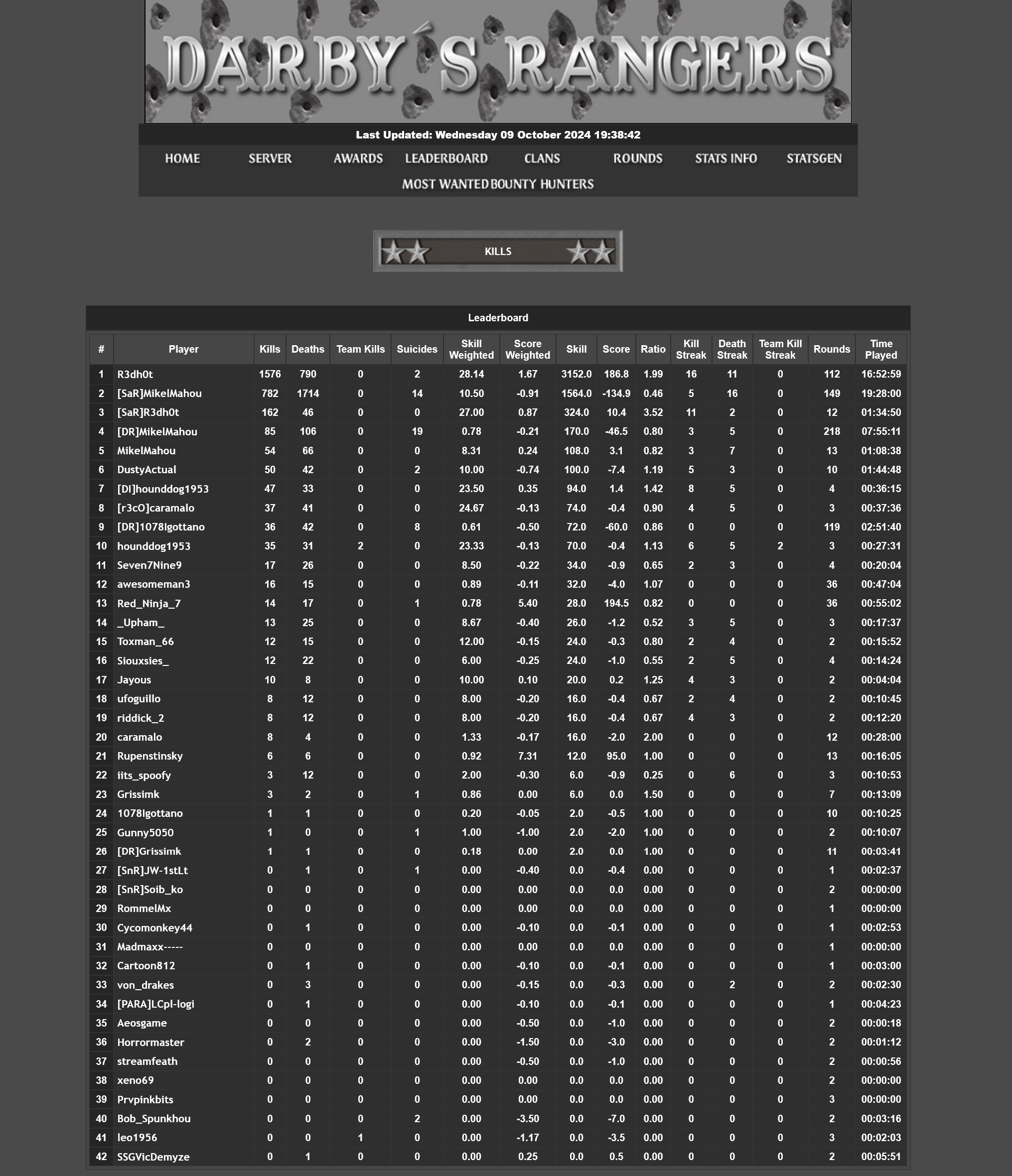
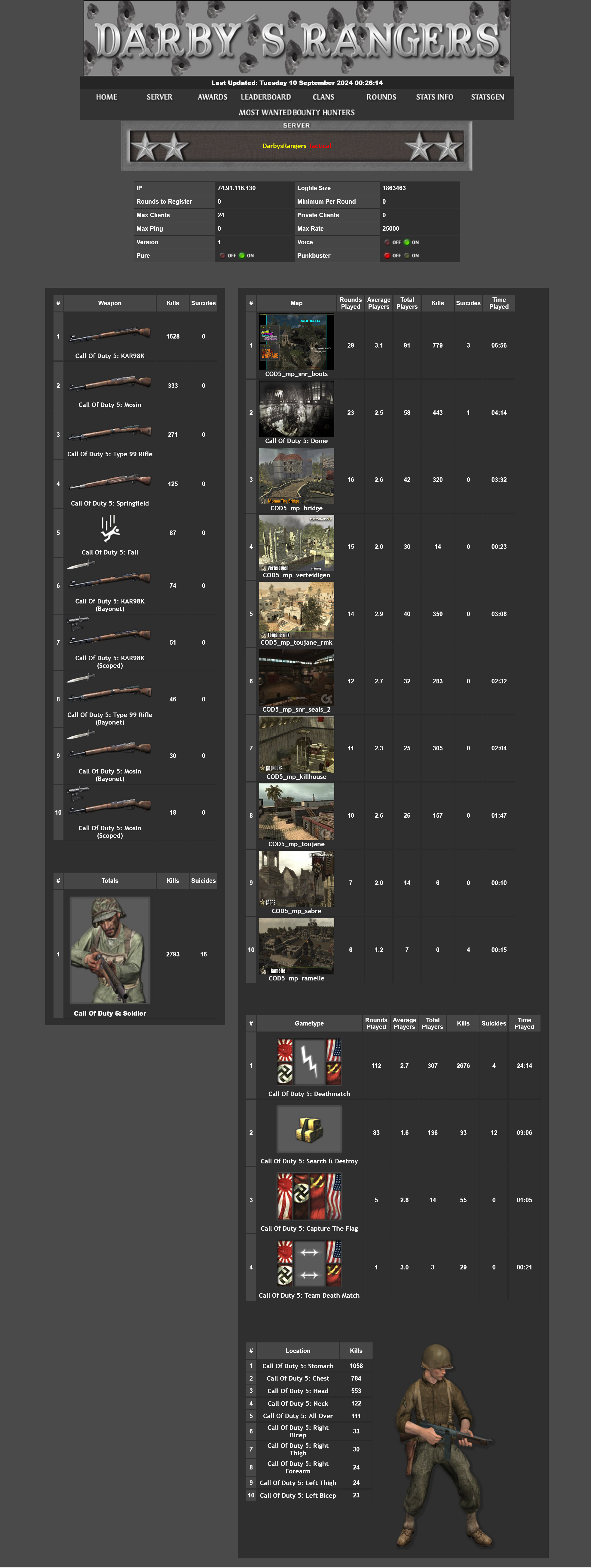
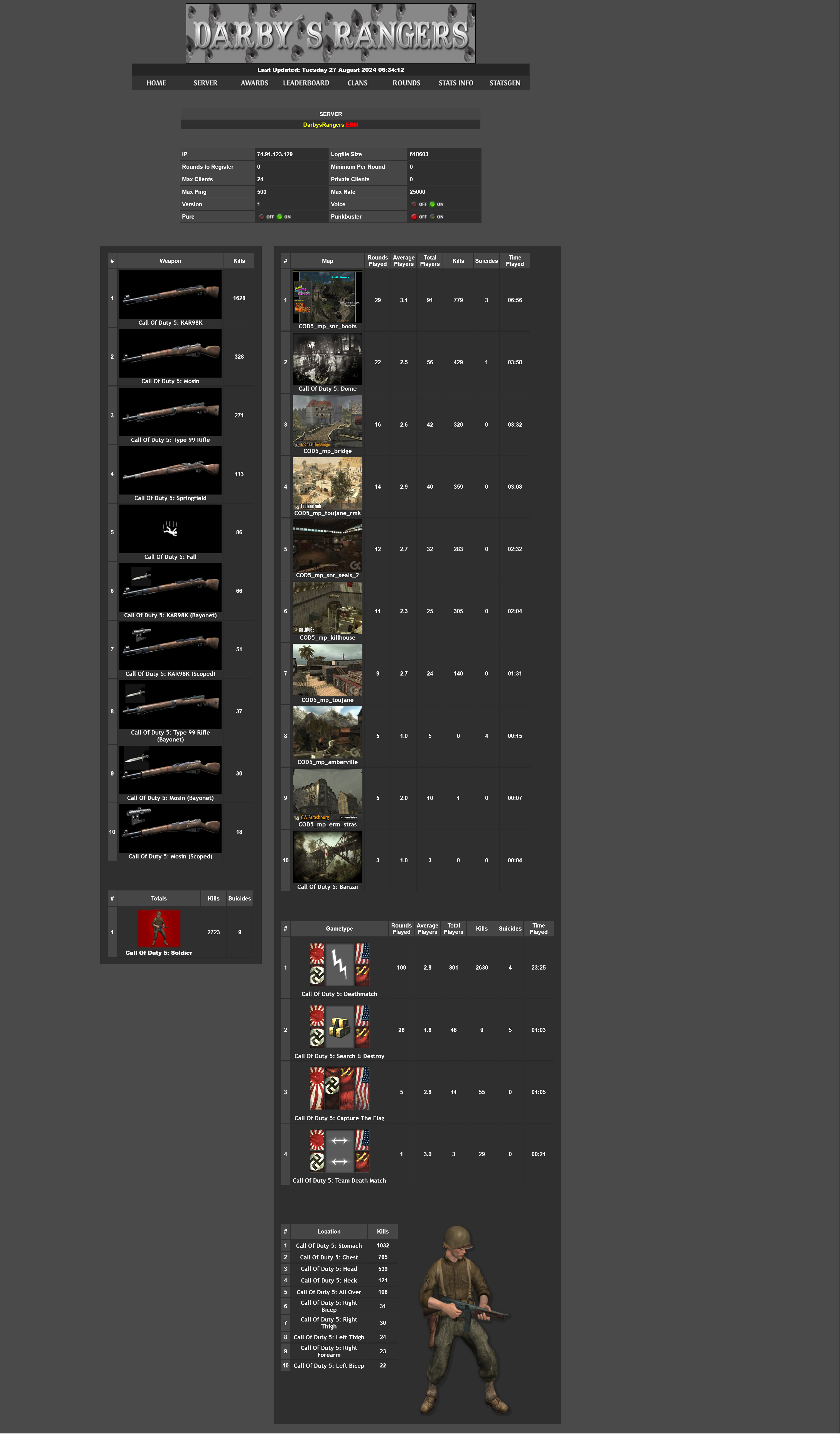
Hello! Here goes my 2cnts for you Idiots! Lol! You can use this awesome stats, your own stats in your website, that are provided by this program, and just have to automatic upload/dopwnload the stats from any server Cod Waw, Cod4 Cod2 etc to your forums, website or site for Stats, These onesm, have images, details, weapon use stats for ANY player who plays at your servers. of Course, this stats program can be associated to more than one server, and get the complete stats and detailed stats for any player, map, gametype, rounds etc etc. The program is StatsGen Here to you can download: https://www.transfernow.net/dl/20250506HrYq7oGJ/ZeWRg2MT And some screen as i used this program, much better and detailes than Gametracker, that fails too much. As you can see is really detailed, and you can create your own style website stats for players, pubber, clan, members, and scrims etc. Hope this like you and helps! Mikel
-
Hey buddy! Just one thing. Have you think about save money and at same time being more effective? I would recommended to you put that Conan server in a Raspberry PI 4 or 5. Why? I can tell you i have been running servers for Quake, Doom , Cod and Mohaa games, also RTCW and Enemy Territory in Raspberry 3 and 4 and they did an excellent job for long time. The Raspberry Pi is great for gamers who want to save money. Unlike a regular gaming server setup that can cost a lot of money, you may get a Raspberry Pi for as little as $35 for older models or $60 for the more powerful Raspberry Pi 5. This means you can spend more on games, peripherals, or upgrades a tiny but mighty single-board computer (SBC) packed with power. It’s affordable, doesn’t use much power, and can do it all. Whether you’re a beginner or a tech pro, the Raspberry Pi is the perfect choice for building a budget-friendly gaming server Raspberry Pi doesn’t need a lot of fancy add-ons to work as a gaming server. You just need a power supply, a microSD card, and an Ethernet or Wi-Fi connection. If you need extra storage or cooling, you can get them cheaply and easily. Even better, building your gaming server using the Raspberry Pi 5 will allow you to use fast SSD storage modules. Running a gaming server 24/7 can be tough on your wallet, especially if you’re using a regular PC. But the Raspberry Pi is a game-changer. It’s super energy-efficient, usually using just 3 to 10 watts, depending on the model. That means you can save a ton of money on electricity while still keeping your server online and ready for action. Setting up a gaming server with a Raspberry Pi is a breeze, even for those who haven't worked with one before. To get started with gaming in general, you can use RetroPie, Recalbox, or Minecraft Pi Edition. Just download an image, flash it onto an SD card, and boot up the Pi. The Raspberry Pi is compatible with several Linux-based operating systems, so it can also support a variety of game servers. Minecraft and Terraria servers work well on the SBC, and smaller Palworld servers are also possible. And the best part? The Raspberry Pi has a huge community of users who are always ready to help. You can find forums, YouTube tutorials, and other resources to help you troubleshoot, optimize, and expand your gaming server setup. One of the most extraordinary things about using a Raspberry Pi as a gaming server is that it lets you play games with people on different devices. For example, you can play Minecraft with friends on PCs, consoles, and even phones. This means you can all play together, no matter what kind of device you have. This also means you don’t have to worry as much about what kind of computer or phone you have. You can just connect to the server and play. Plus, you won’t have to pay for a third-party hosting service. You can just use your Raspberry Pi and have a great time playing games with your friends (or enemies). And finally, you can host the game, but also a website, discord server, or any team speak server forums and etc that you will need for that project. The cost, the efficiency and the power that a Raspberry has in unbeatable at this range. So my advice before you spend lots money in hardware, lines, and so on, take a look the Raspberry 4 or 5 to consider for your project. Anyways, here you can find a guide to how to set up the Conan Exiles server as an example, and if you look this, will see other options like a VBS server you can just rent for a ridiculous price monthly, or even do it yourself with control panel and all set up in Linux if you decide go that way. https://www.hostinger.com/tutorials/conan-exiles-dedicated-server-setu Greetings!
-
DM3 Rotation 3-3-3
MikelMahou replied to Merlin007's topic in Call of Duty: World At War's World at War Map Rotations
Great Job Merlin! See you around!!! Mikel -
I wish Thank You BlackRose for your kind invite, so i will try get there for this event! Thx!! See u in the Battle!!! Greetings!!
-
Hi there! Lets see, did you use afterburner or any msi program to power up or enchance the graphics adjust? if you do, that is the problem- Try this: read the post here: https://www.reddit.com/r/nvidia/comments/9f1iu7/psa_micro_stuttering_a_lot_turn_off_power/?utm_source=embedv2&utm_medium=post_embed&embed_host_url=https://www.xtremeidiots.com/index.php You can take a look this video too: https://www.youtube.com/watch?v=bQH3DYNboM0 Also, if you dont use Afterburner or any other similar program, the main cause will be the power control or power dispatched to the GPU in the settings. There are some mainboards, like asus, Gygabite and AsRock that auto assign certain amount of power to GPUs. Also an incorrect settings in Power settings under windows Control Panel cause this problems. Check in Windows Control Panel the Power adjust to GPU and CPU, probably is called like Advanced Power Settings and create your better choice to evite those shutters Other good idea is delete and uninstall completly the drivers fro the GPU and the MotherBoard and reinstall all them. Use the DDU(Display Driver Uninstaller) for delete all drivers from your GPU, do it in safe mode for better experience. You can download DDU here: https://www.guru3d.com/download/display-driver-uninstaller-download/ And finally, if none of those works, check your main power supply, cause maybe has a leak or problem and has not enought power to power up all your system, or as simple as an electric issue with that. Hope helps of course it would help if you can show your system specs to check better all that. List the system you use components, motherboard, gpu,cpu... Greetings
-
Hey! All this is fine. You can get a new image from windows website as described many of your answer here. that is fine. But, if you want something better and dont have to do all this you can try this: Activation Windows 11 CMD Open CMD and type one by one and ENTER slmgr /ipk VK7JG-NPHTM-C97JM-9MPGT-3V66T (this is a l,egit and given by micrososoft license so you can use this one to get one activation many times you want) slmgr /skms kms8.msguides.com slmgr /ato WWindows is now Activated! Check Health System in PowerShell and recover damage files. (when your system has fails or errors, restore system by this) This works for W10 and W11 Power<Shell step by step: Repair-WindowsImage -online -CheckHealth Repair-WindowsImage -online -ScanHealth Recover system Damage Files and Image Windows 11 Clean in CMD This works for W10 and W11 Step By Step sfc /scannow DISM /Online /Cleanup-Image /CheckHealth DISM.exe /Online /Cleanup-image /Scanhealth DISM.exe /Online /Cleanup-image /Restorehealth Dism.exe /Online /Cleanup-Image /startComponentCleanup CHKDSK DNS FLUSH Flush and Clean DNS on Wondows for better response in Explores and websites games etc etc. All this OPEN CMD and type: ipconfig/flushdns ipconfig /reléase ipconfig /renew ipconfig/release/renew/flushdns Thats all you need to go! I have used this method for years, and currently i have W11 running smooth as first day. (I upgraded from W10 at start doing as described here, restore your W10 image as described here, then you will have to activate your license, (in my post method) and then you can go direct to upgrade from that W100 to W11 no problems at all. This is absolutly legal cause those license are free and given by Microsoft directly, you can do a little search if you want to get some free license too, but this one works perfectly. Other chance is actiavte the Insider W11 option with given license and do it ) If you finally get the usb install method,download a iso from here :https://www.microsoft.com/en-us/software-download/windows11 Then put that iso in usb and install from there. Keep the USB with the iso for futures installs or repairs. As a safe version clean. If need more info or help, you know what to do! Greetings
-
Hi! No problem! im here just for help people so if you have any further problem...you know what to do! Sahring the tricks and knowledgement for things is the way to go! Cheers!
-
hI! Yeah you have those in the command line, is ok, But also puty them in the cfg files too. Is something server needs also for works correctly. And, about the maps rotation, if says is just 350 characters will be fine under 1024 characters, but if you need more maps divide the list in parts, like shows the config file for Xtreme mod, you posted there. Its usefull i did with my all servers this and i had more than 300 maps in rotation! Crazy! but works fine that. The thing seems to be fine in rest of your settings, so i wonder if you did a MAIN folder created or just you used the one that comes wqith the game when you installed? I say this cause maybe there is the conflict with the whole thing in downloads maps. You can chek "how to" here: http://www.nobsclan.com/tuts/cod2/ Cheers!
-
See those errors: Take a look and change them, also, do it with the server stopped. Then upload new config and start the server. Take a look closely to the maprotation. In your settings seems the maps esceeded the 1024 characters for the rotation. Make it shorter.Less maps maybe? Look at my quote edit, and see the 2 errors i see in your cfg. If you run a server in internet, must be deciated, so this have to be set dedicated "2" and the ending command map_rotate, has to be unquoted by //: map_rotate If you put the // before the commands that dont works. Rest seems to be fine. Take a look andf tell me if all is ok! Cheers! // Server Network Mode //set dedicated "0" // 0 = Listen, 1 = LAN, 2 = Internet This is wrong: Must be: Set dedicated "2" // Making sure it rotates // You are NOT required to set this if you have +map_rotate in the server's // startup parameters (see command line or the GSP control panel), or if you // are using the starting map above. //map_rotate This also is wrong.Must be: map_rotate (without slashs) if you put slashs // before the instruction that dont works. // Server Network Mode //set dedicated "0" // 0 = Listen, 1 = LAN, 2 = Internet