
KaptCrunch
-
Posts
6184 -
Joined
-
Last visited
-
Days Won
98 -
Donations
465.00 USD -
Points
111,500 [ Donate ]
Content Type
Profiles
Forums
Gallery
Twitch
Running Commentary
Events
Store
Downloads
Everything posted by KaptCrunch
-
-

-
-
cause he wears them upside down to keep the air on his private's to cool and his back warm and no plumbers crack shown when bends over picking up the cables at work.
-
looks like Blackrose's sig
-
Shaka Sign Hello
-
Bills & parts is true, talking is a ? and was the chain guides also replaced. so only 2,600 Km is about 2 months riding, are bills DATED 2 months ago. check oil colour and smell it.......burnt or not, clutch plates smell are things to look at and clutch free travel if large is Ok if very short means need replacement. gaskets, new: springs, frictions and steels plates. isn't a hard job to do just pay attention to details like what way were the steels punched out and remove any burr's off them cogg's an look at the basket of mating to steel cogg's, you can add stiffer springs (slighty more) to have less slippage.
-
now just a putter head
-
-
just good ole back bacon breaded with corn meal and keep the intestines for sausage casings after washing them out with brine pulled pork
-
thought it was rump roast for TBB in turn other cheek lots of meat
-
have you moved OS's win 10 to win 11 to game now. also using pod's to move, need to pack them solid for are 45-50° angle to load pod ,heavy appl's an piano need to raise on 6 blocks spread length and nail them to floor, tie off to upright sills so not to move during transport and rear door need plywood and 2x4 in X pattern in front of rear door to prevent door from jamming up when want to unload.
-
hard to say for looks buck was stiff with rigor mortis why moved so easy, not sure if they drained the blood yet or bear not attack fresh meat
-
don't cry in your beer
-
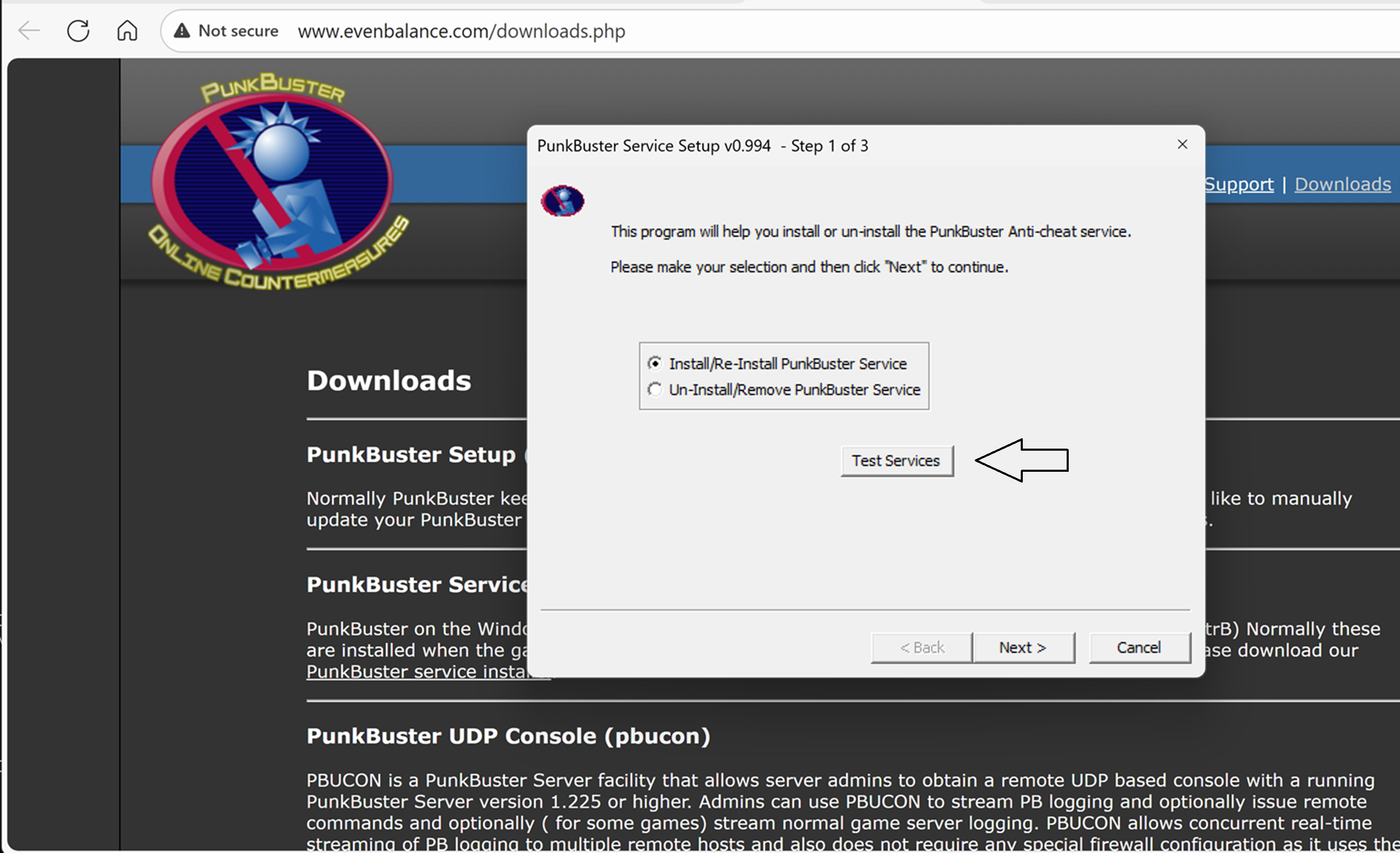
CoD been getting event viewer reports on win 11 run this test services
-
-

convection currents at work, no touch the bowl
KaptCrunch replied to KaptCrunch's topic in Jokes and Misc stuff
-
-
-
-
funny guy
-
-
some other selections
-