Leaderboard


Popular Content
Showing content with the highest reputation on 10/05/26 in all areas
-
Way back in Quake 2, Lithium 2 mod, they had a completely invisible skin that would be placed in the air. Anyone that shot it would get kicked for cheating. Eventually someone figured out to use that skin for themselves and they would be invisible. What a mess. I always forced skins when Quake 3 came out and if you played OSP (Orange Smoothie Productions) mod, or Pro Mod they had bright skins for every one. It was more map control and skill then camouflage and hiding. Back then "camping" despicable, but today in "battle simulation" games camping only seems natural. I laugh when players get mad at campers in COD. This is war soldier!1 point
-
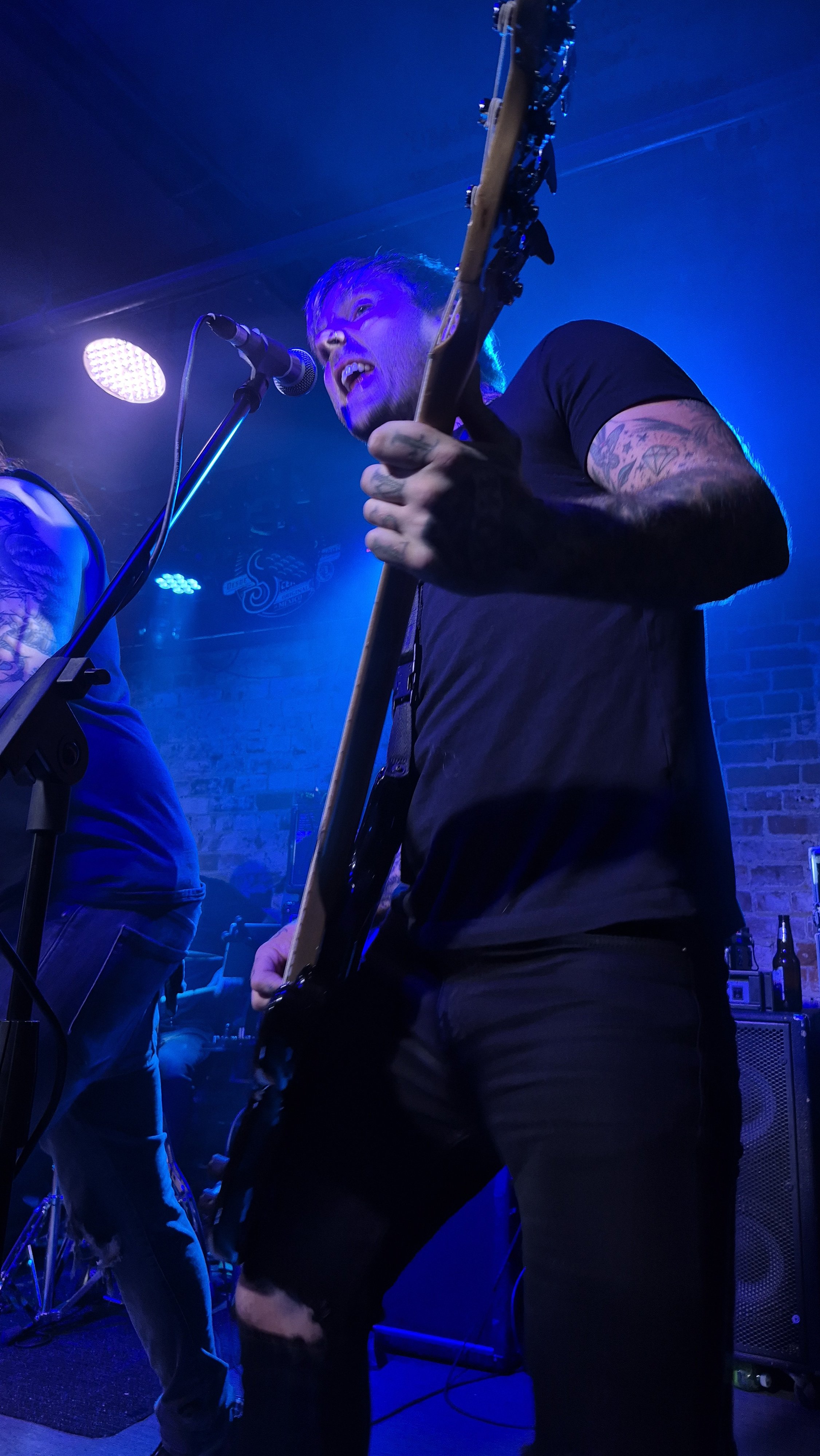
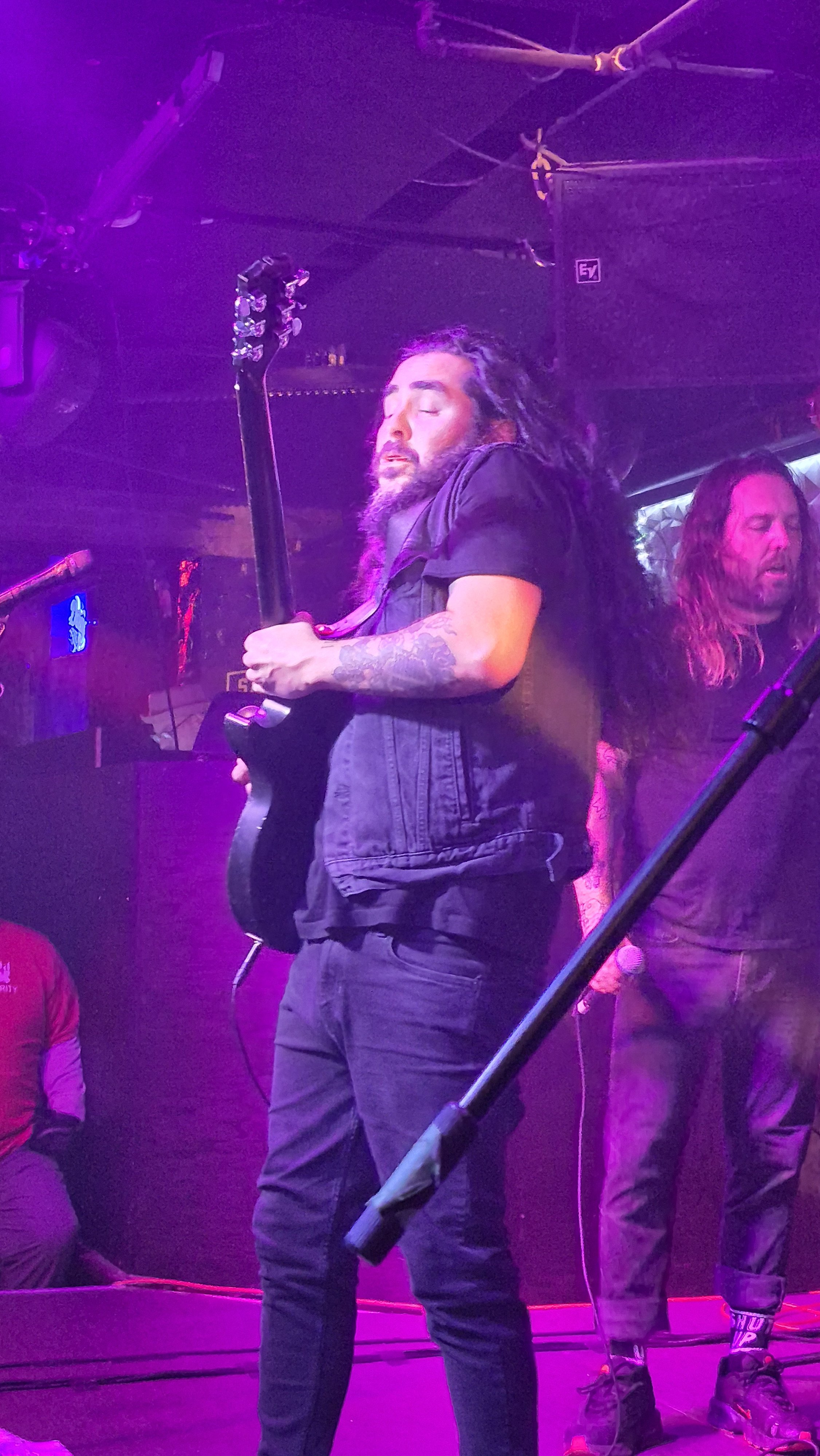
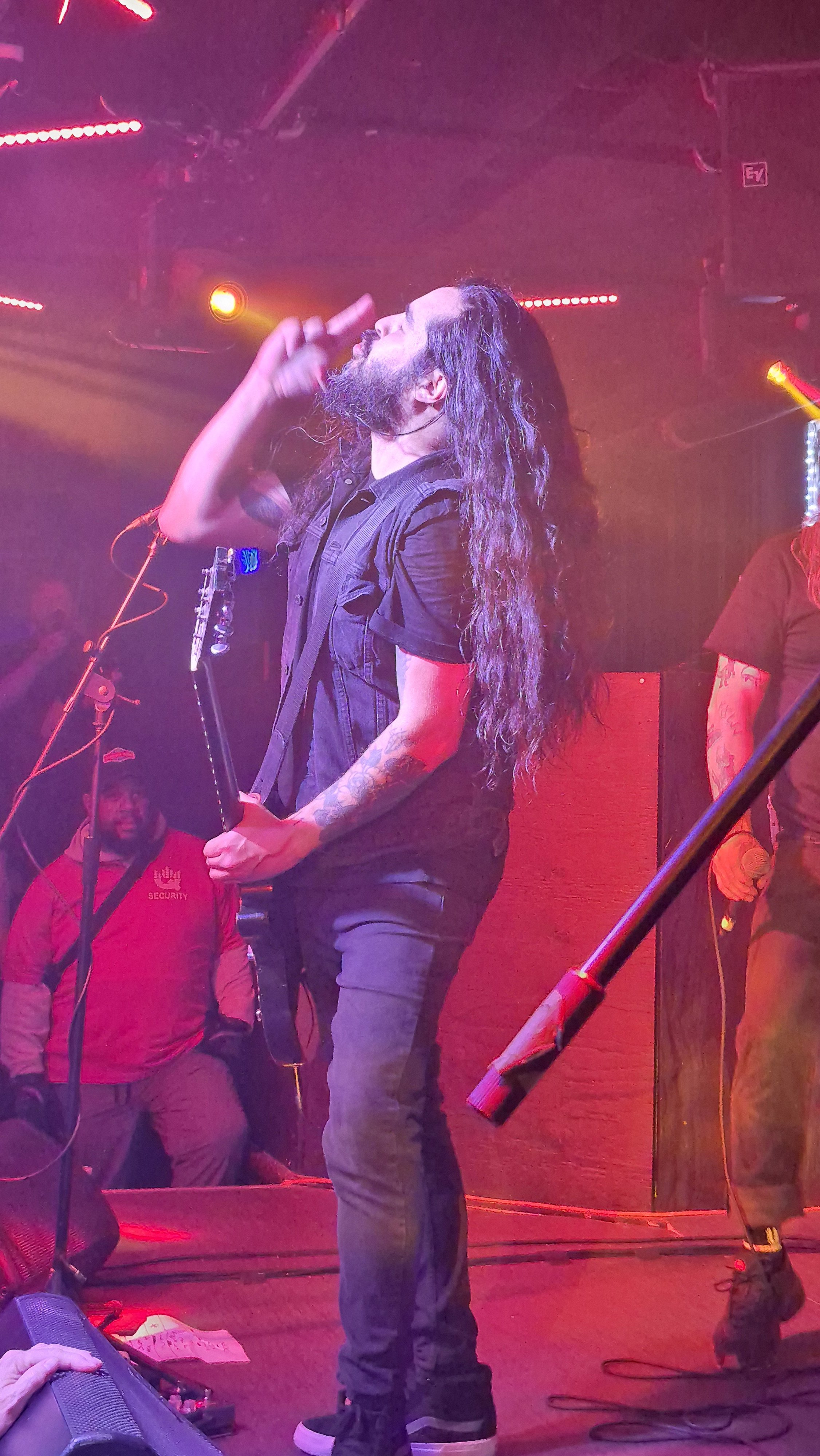
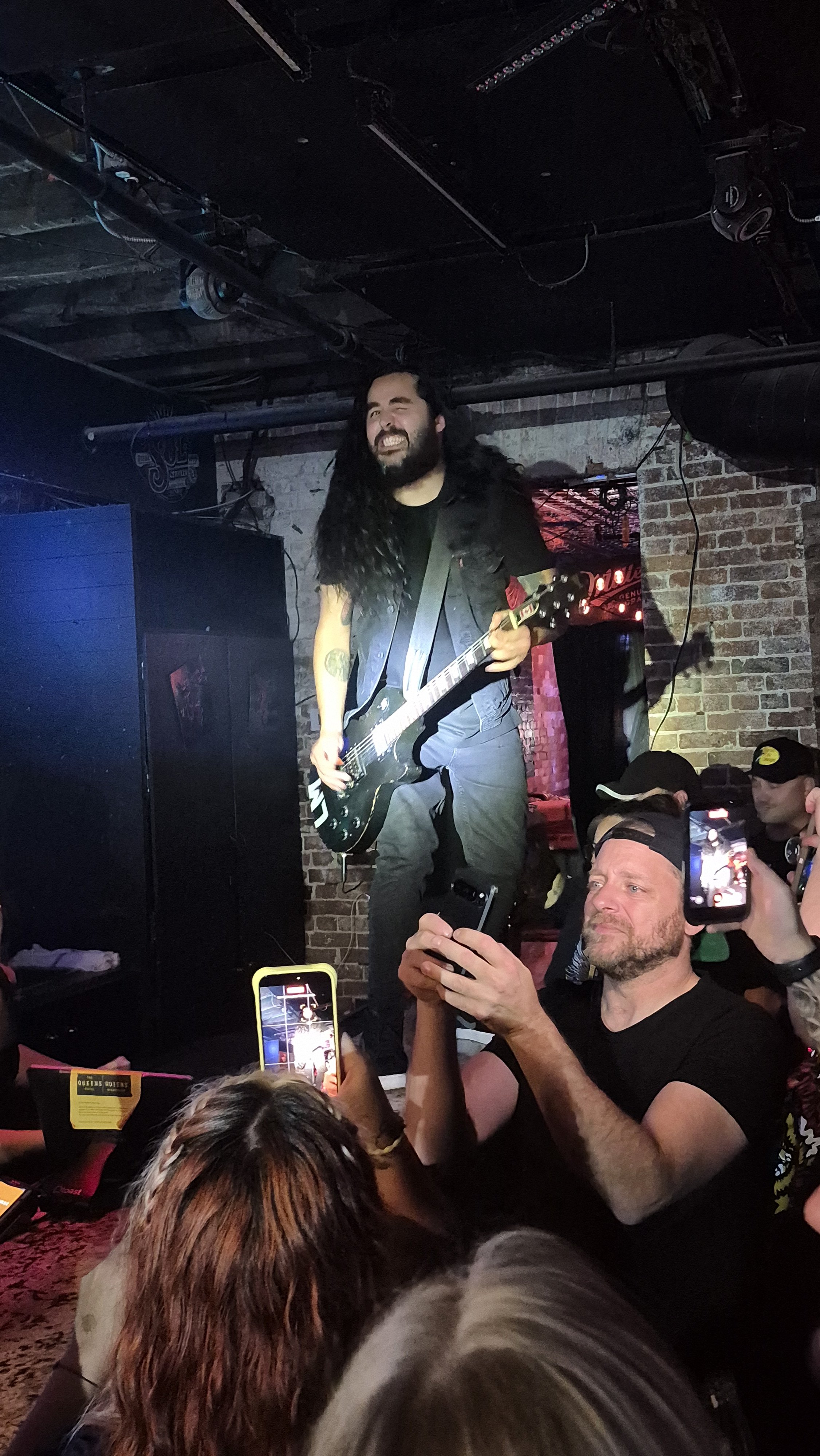
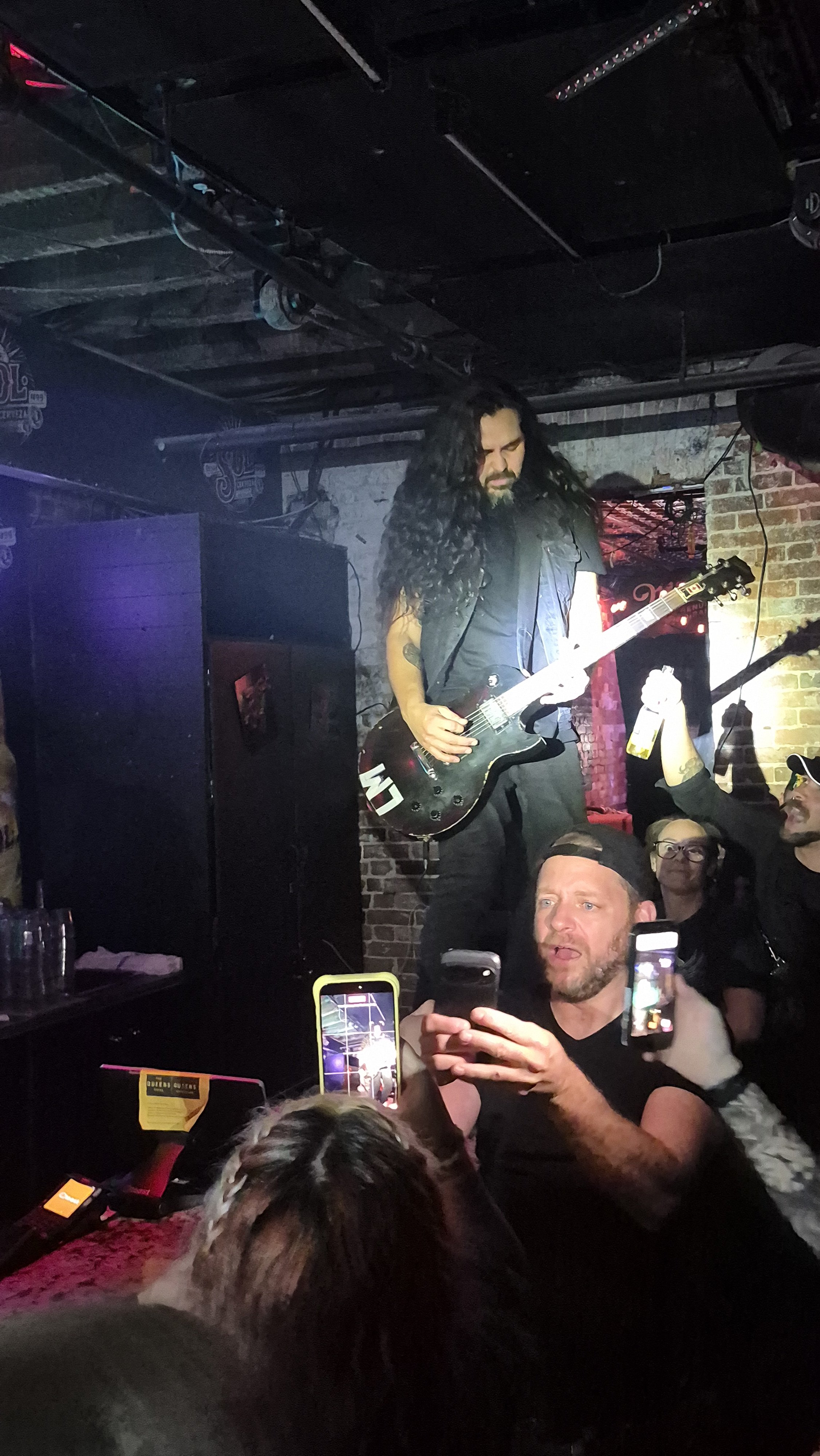
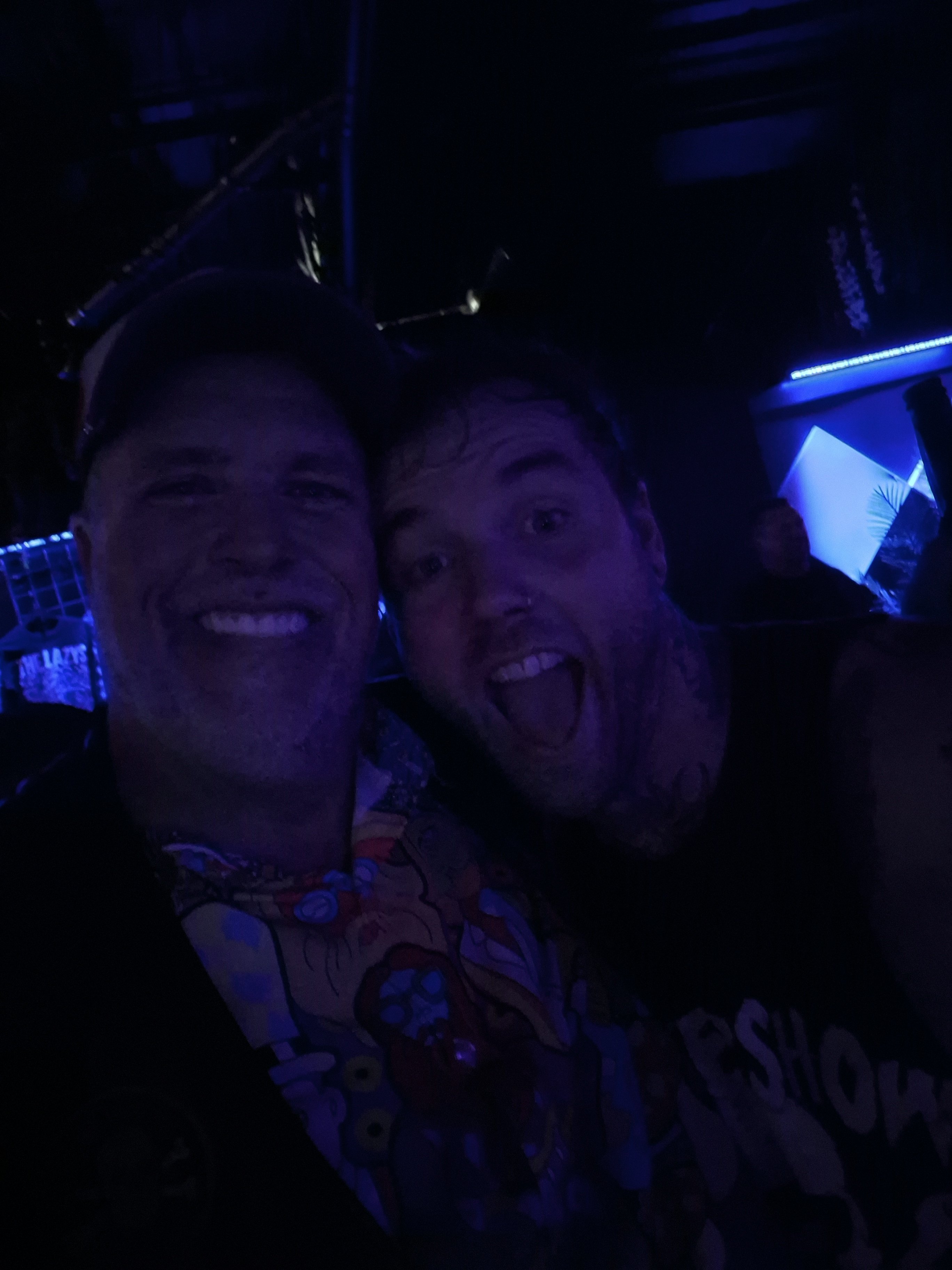
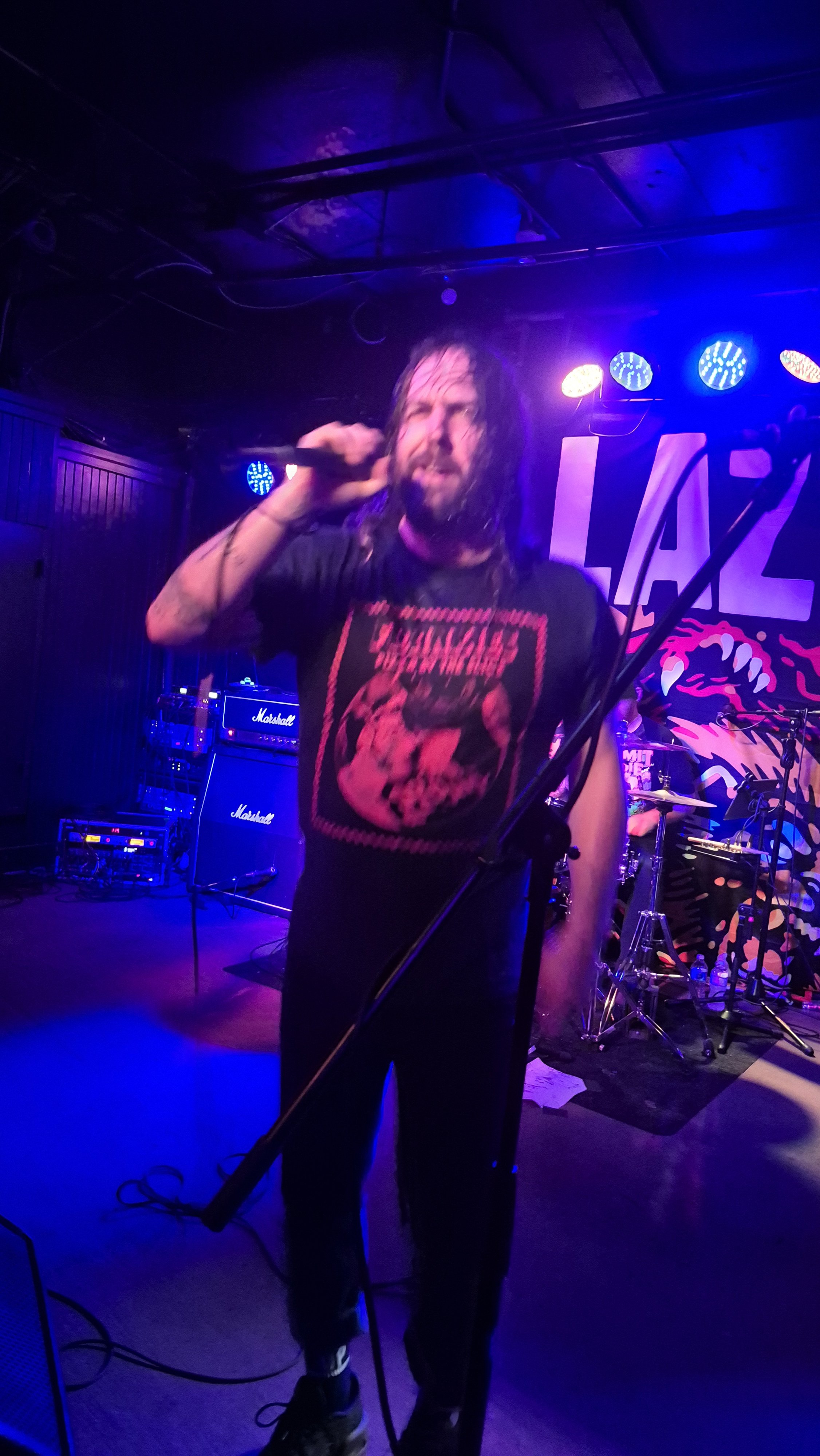
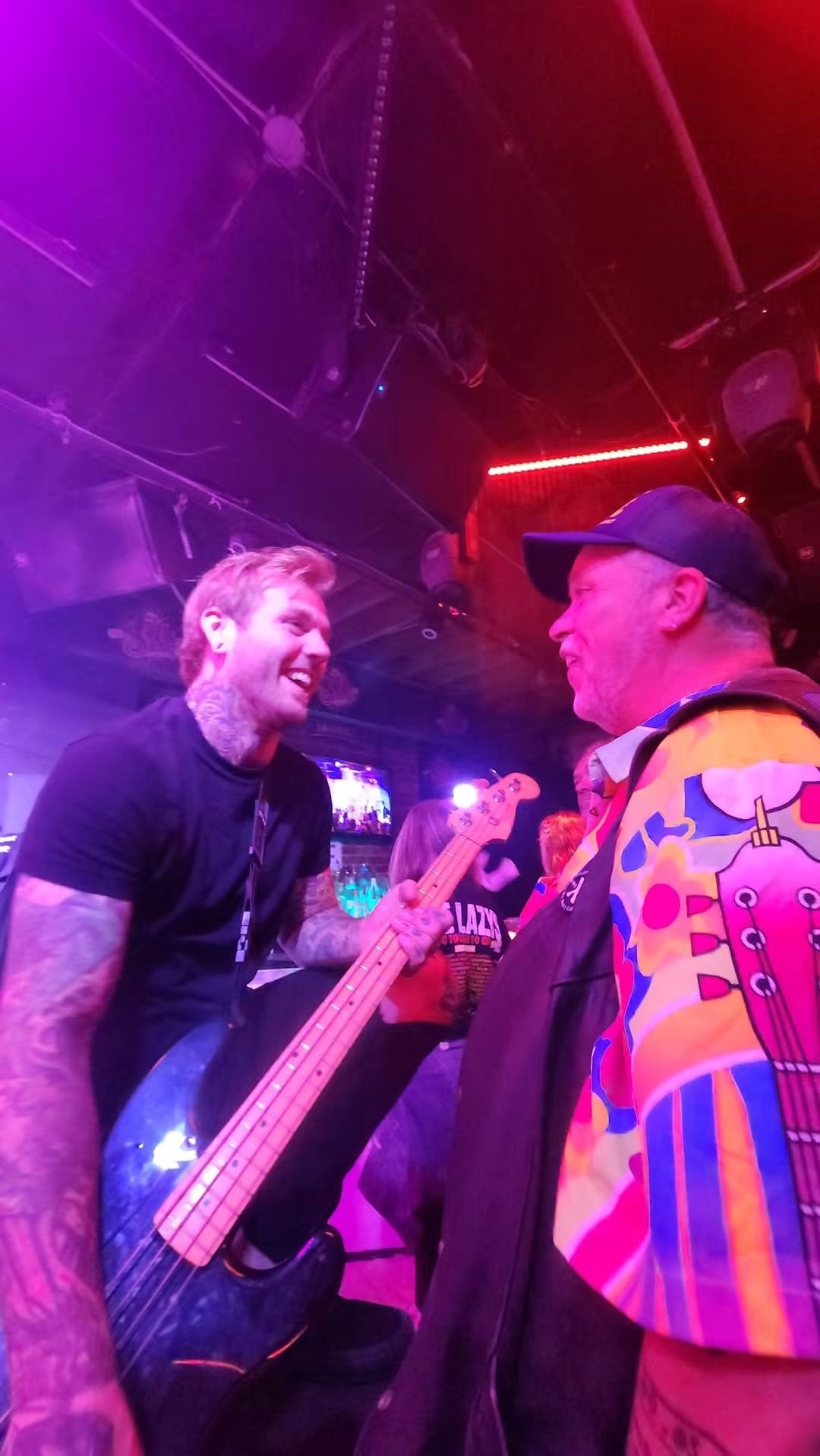
Spent the last 2 nights out seeing one of my favorite bands play. They are a hard rocking Aussie/Canadian band called The Lazys. Been a mega fan for over 10 years and have become close friends with the band, been over a year since they have been on a Canadian Tour so I was more than happy to catch 2 nights in a row! Look them up on Youtube or Spotify if you like good hard hitting rock and roll!
 1 point

.jpg.1d8005c3c380dc88e441a4a04fa9d562.jpg)