
All Activity
- Past hour
-
See, that is actually something you can work with. ^^ try that, i am sure it will work out before you scream your ISP to death ROFL
-
 BUDMAN reacted to a post in a topic:
Joke of the day
BUDMAN reacted to a post in a topic:
Joke of the day
-
Just met up with an old friend. "What you been up to" I asked? Oh I just had a new hearing aid fitted. Its state of the art and the best thing ever, he replied. "What type is it," I asked? 10 past 11 he replied!
- 1 reply
-
- 1
-
- Today
-
lazymarcky reacted to a post in a topic:
2026-03-14 Birthdays
-
@WldPenguin gave me a great idea about having breakable glass while we were testing this map out on the server. Just having the glass break isn't good enough for me. I want the things to fall and kill you too, so I'm going to be working on that for a while. check out the vid of the one section I built and finally got scripted right. Since I can't really scale the map down, I decided to also spread the spawn points out a bit to make getting out of the spawns a bit easier. they will still be at each end but spaced out evenly from the back to the center of the map. I thought about some teleports, but I feel working into the other spawn should take some work, not just a warp. If I can figure something out, I may add some. Call of Duty 4 Modern Warfare 2026.03.14 - 11.55.14.01.mp4
-
 Hello! Due another post, and due i think this is going to be useful for many people here it goes some tweaks and tricks you can start to check and do in your windows install and game (in this case i used the COd Waw game, but is apply to other games too) Here it goes: Level Windows System Checks: ITENGRITY CHECK SYSTEM AND REPAIRT ONLINE SYSTEM CHECK WINDOWS sfc /scannow DISM /Online /Cleanup-Image /CheckHealth DISM.exe /Online /Cleanup-image /Scanhealth DISM.exe /Online /Cleanup-image /Restorehealth Dism.exe /Online /Cleanup-Image /startComponentCleanup CHKDSK Power<Shell Repair-WindowsImage -online -CheckHealth Repair-WindowsImage -online -ScanHealth ENABLE THE DISK FAST DRIVER IN WINDOWS 11 FOR FASTEST READ AND WRITE SSD DISK AND M.2 SSD DRIVES Enabling the new Windows 11 NVMe driver requires you to be on Windows 11 25H2. As well, you'll need to check the Driver details section of your storage drive in the Windows 11 Device Manager and make sure that your drive is using StorNVMe.sys. Otherwise, enabling this driver won't do anything for your system, as it will continue to use the vendor-provided driver for your SSD. To enable it, you have two options. The first uses the Registry Editor, and the second uses PowerShell or Command Prompt with administrative privileges. To add using the Registry Editor: Press Windows key and R, then type "regedit" Navigate to Computer\HKEY_LOCAL_MACHINE\SYSTEM\CurrentControlSet\Policies\Microsoft\FeatureManagement\Overrides Add the following REG_DWORD type values in this folder, each with a hexadecimal value of "1": 156965516 1853569164 735209102 Reboot Alternatively, you can open an elevated terminal and run the following commands: reg add HKEY_LOCAL_MACHINE\SYSTEM\CurrentControlSet\Policies\Microsoft\FeatureManagement\Overrides /v 156965516 /t REG_DWORD /d 1 /f reg add HKEY_LOCAL_MACHINE\SYSTEM\CurrentControlSet\Policies\Microsoft\FeatureManagement\Overrides /v 1853569164 /t REG_DWORD /d 1 /f reg add HKEY_LOCAL_MACHINE\SYSTEM\CurrentControlSet\Policies\Microsoft\FeatureManagement\Overrides /v 735209102 /t REG_DWORD /d 1 /f Reboot This will then enable the new NVMe driver. If you have any issues, you can open the Registry Editor, navigate to that folder, and delete the three values that were added. Once you've rebooted, it'll be disabled again, and you'll be using StorNVMe. Optimze Ram Windows: Open a Power Shell terminal as admin Then Type This: Enable-MMAgent -mc (this enable the cmd command) Then Type get-MMAgent You Will see this on your CMD console: ApplicationLaunchPrefetching : True ApplicationPreLaunch : True MaxOperationAPIFiles : 512 MemoryCompression : True (if this shows True, is Active) OperationAPI : True PageCombining : False PSComputerName : Type This as admin to deactivate the sevice and cmd command: Disable-MMAgent -mc (to Deactivate Memory Compression) Check result in CDM Screen doing again: get-MMAgent Then MemoryCompression False (then is correct) Close and restart PC Done!! Level Game Tweaks Mode:: Most Important cmd to have in game (in console set up or in cfg write your own) In Graphic Settings in Game set up: Antialising 2x (is better than 4x) quicker AND BETTER OFF!!! Vertical Synch Always OFF (except you wanna have more input lag) Lol! Anisotropic Filter at Max All Textures at MAX And your normal settings fo rest. Comands that help the game to be more consistent in hit boxes, ping etc. (better aim and better impacts) seta com_hunkmegs (number must be half of your ram memory) seta r_multigpu 1 (improves rendering of graphics) seta r_gpusync 2 (agreesive mode) this improves mouse answer to clicks etc seta r_gpuSync "agressive" Seta com_maxfps xxx (here number 2 chances, or set it up to 250 fps or your fps hz from monitor refresh rate, the better this last) seta cl_maxpackets 100 (ifping is good if is some high is better set it up to 60 even 30) depends how high is ping under 100 ping better is 100. seta cl_packetdup 0 (if ping is good is is over 60 better is set to 1 or even 2) seta cg_drawLagometer "1" (this activate lagometer in screen to see if you have lag or conexion issues always set to 1 to see to hide set to 0) seta cg_drawfps "1" (to see fps on screen as playing.) seta snaps 30 (better improvement between you see in screen and what happens in server side) Impacts hit boxes etc Some useful Binds i have: For set fps to my monitor refresh or set them to 250 in one key (look packets always are related same) bind F5 "toggle com_maxfps 144 250;toggle cl_maxpackets 100 100" bind F6 "toggle cl_packetdup 0 1 2" bind F7 "toggle cg_fov 65 70 75 80" (this is for fov, some maps is better change fov to minor values to see better) this change values in one key bind F "openScriptMenu modkeybind cyclefpslag" Sniper bind bind F4 "+speed_throw; +holdbreath" (this bind hold the breath and the stabilizer from sniper at same time) One key use to both at same time. Bind to minimize game to a window and dont hang game never (you can use your own resolutions for that) seta r_mode "2560x1440" (this is my game resolution to play) Take in count that you will need 2 different resolutions to this works fine. One for the desktop noraml resolution (in my case is 3840x2160) and the game as i told is (2560x1440) that allows use the bind to minimize the screen ingame.(cause the game resolution is lower than the desktop) Look for that carefully- bind p "vstr fullscreensss;" (when i press P key minimize to a window in ay i can make some things at same tgime as i play) if pressed again P come back to full screen) seta fullscreen0 "r_fullscreen 0;vid_restart; set fullscreensss vstr fullscreen1; Say ^1r_fullscreen 0 " seta fullscreen1 "r_fullscreen 1;vid_restart; set fullscreensss vstr fullscreen0; Say ^1r_fullscreen 1 " seta fullscreensss "vstr fullscreen0" seta r_fullscreen "1" seta r_fullscreensss "0" Some Improvements in how Grpahics Card rReaction to changes in specs for games and Delays Times. (sometimes you got crash random in some games, Cod Waw, probably is one of those. This set up in register of windows helps to evite them) Navigate to - H_KEY_LOCAL_MACHINE \ System \ CurrentControlSet \ Control \ Graphics Drivers. Right click on the open field and click on New / DWORD (32bit) Value, Then name it: TdrDelay -> double click it -> Set the value to 8. and here some more info if you wann know more: How To Improve Hit Detection in Call of Duty (WAW version) Call of Duty is known for pretty bad hit detection all across the board. Thankfully, there are ways to improve hit detection and registration in many of the classic titles. I hope this guide helps you to enhance your COD:WAW experience. =>Step 1: Pay for the best ISP in your area<= Well, this seems obvious huh? If bad comes to worse...you could always move to Chattanooga. =>Step 2: Play on a Wired connection<= Wi-Fi is just too unreliable for online games. Trust me. =>Step 3: Remove your Wireless LAN card<= This one is less obvious. If you have a WLAN card and you're on Wired, it seems to introduce lag just from being installed. Just remove the card and put it in a safe place. =>Step 4: Optimize your MTU size<= Your packets might be getting fragmented, causing poor hitreg. Follow this guide here to see if you're getting fragmentation and how you can fix it.[www.dcgaming.org] =>Step 5: Optimize your data transfer rates*<= Time to optimize the game itself. Turn on the console from the in-game options and input the following: /rate 25000 - The rate you send data, measured in bytes per second /snaps 30 - The amount of times the server updates itself, similar to "ticks" /cl_packetdup 0 - Duplicates packets sent out to combat packet loss (turned off) /com_maxfps 100 - The max FPS allowed client-side, affects in-game physics /cl_maxpackets 100 - The maximum CMD packets sent to the server a second =>Step 6: Ensure you have the best in-game FPS<= The Quake 3 engine has total synergy between FPS and CMD packets sent. If you cannot manage a solid 100FPS at all times, either lower your settings, or download a high FPS config if bad comes to worse. Monitor Settings Fps and Refresh Rate Related Monitors with More than 100mhz Refresh Rates Monitor refresh rate has a direct influence in your fps framerates and smoothing game. How must be setting? 1-Resfresh Rate and Fps limit has be paired to same that monitor can hold without lowering or fluctuating fps. Guess you have a Monitor wich resfresh rate is 144 or 165mhz, then you will have the vertical synch option to be enabled, wich makes a lot of difference if is activated when you shoot or aim a target ingame, so active this setting in game and in your windows settings too. In this case set up your fps limit to the same if your pc canhandle without variations. But, remember that maxpackets are limited to 100 for the game engine, wich means, that best compromise solution for hit detection is paired to the same 1oo fps limit. Why? cause maxpackets are going to mark the point which you can ot update with your resfresh rate monitor, so all those more fps you theorically gain is not real. So best settings for those who has high refresh rate monitors up to 144 or 165 or even better is: In Cfg Or in console ingame Options: Rate 25000 seta com_maxfps 100 cl_maxpackets 100 cl_packetdup 0 snaps 30 In game Settings Menu Options: Vertical Synch Enabled in game settings and windows settings Texture Filtering Trilinear ON All textures to MAX Enable Anisotropic Filter ON (all right side bar move all the way) Screen Refresh Rate (here set up max your monitor has allowed) 60-144-165-240 etc Aspect Ratio Auto (recommended) Synch Every Frame Yes Antialising 4x Dual Video Cards Yes Shadows Yes Specular Map Yes Ocean Simulation Yes Dynamic Foliage Yes Bullet Impact Yes 2-Monitors 60mz Refresh Rates Settings Old Video Cards In this case yur best Option is go for these settings: In Cfg Or in console ingame Options: Rate 25000 Cl_maxpackets 60-100 (related to your fps limit) Recomended 100 Seta com_maxfps 60 to 120 (always in this relation 60-70-80-90-100-110-120) Recommended 90 Cl_packetdup 0-1-2-3-4-5 (look your framerates and see if has some variations then apply the related set for it) Recomended: Cl_packetdup 2 In game Settings Menu Options: Vertical Synch DISABLED settings and windows settings Texture Filtering Trilinear ON All textures to MAX Enable Anisotropic Filter ON (all right side bar move all the way) Aspect Ratio Auto (recommended) Synch Every Frame NO Antialising OFF Dual Video Cards Yes Shadows Yes Specular Map OFF Ocean Simulation OFF Dynamic Foliage Yes Bullet Impact Yes Mouse Related Is true that new mouses get awsome DPI max sets and a lot of new improvements. But... Really is good to play FPS like COD? The answer can be controversial, but at the end, the real truth is Pro Players and Old School gamers know that high DPI setttings in your mouse made your aim worst! Amazing ah? Well, there is a logical behind this but it will too long to explain (search in google about it) So, what DPI i have to do with my amazing super mouse last gen that gets more than 6000 DPI? The correct range will be 600-800-1000 DPI setting for play smooth and get a better aim when you play.(Pro Players and competitive players set it up in 800 DPI allways) This DPI range offers better aim cause yout move with the mouse aim tracks are less faulty in stops over targets and when you correcting the tracking over a target in movement. Obviusly in windows settings for mous the sets has to be paired, so let the mouse accl off and the speed to medium. Same in game option. Mouse speed must be paired without mouse acceleration OFF in game settings. Why? cause again, the Quake Engine do his magic and you will notice and have a better and smooth aim, tracking and better sweet spot to make your aim progress. So its on you try and compare or just ignore these wise advices. Good luck, and have fun. *A Technical Explanation Let's compare the default settings to the improved settings, shall we? Default: /rate 25000 /snaps 20 /cl_packetdup 1 /com_maxfps 85 /cl_maxpackets 30 Optimized: /rate 25000 /snaps 30 /cl_packetdup 0 /com_maxfps 100 /cl_maxpackets 100 The default Rate sends 25kbps, as fast as IW capped the Q3 engine setting. Most servers are set to sv_fps 20. The game readjusts itself if /snaps is set higher. This is a precaution for any servers that do have sv_fps set to 30. Packet duplication only wastes bandwidth unless you really do have that bad of a connection. The Q3 engine only takes FPS caps equal to 1000/x. As such, 85 gets rounded up to 91 (1000/11). /cl_maxpackets must be set to a number that is equal to the maxfps/x. As the default is 91, this is what happens: 91/1 = 91 91/2 = ~46 91/3 = ~31 91/4 = ~23 You only send ~23 packets a second on every fourth frame! Something About Memory and Ram The windows suite has some controllers to allocate memory or do a MemoryCompression for this. For games is not the best option. So to improve this use this tooL: Open your PowerShell as administrator. Write this:get-MMAgent When the command works you will see this: ApplicationLaunchPrefetching : True ApplicationPreLaunch : True MaxOperationAPIFiles : 512 MemoryCompression : True (this line is what matters) OperationAPI : True PageCombining : False/True (this no matter) PSComputerName : To change this in same PowerShell as administaartor write this: disable-MMAgent -mc This is going put memory as not compressed Then you will see the line: MemoryCompression : False (this is what we want) Then restart PC. This going to improve your memory process for games and video etc. Using the MSI tool MSI_util_v3 (is the name of app you can search google or go here: and read and download the tool for your use. Basically is a tweak for graphics cards and the way the response and get the instructions of commands in games etc. Using it you will see a better perfomance in games and some hard task like video edition etc. Drivers AMD Community https://www.amernimezone.com/#features https://www.amernimezone.com/#download These drivers improves the capabilities of offcial drivers and much more for AMD users. Are under AMD license and offers some tools added to make your drivers get their hot spot with some tools and big improvements in stability and perfomance. Read carefully instructions before doenload and follow steps one by one for cleans installs. Level DNS realease and Free DNS:: Open A CMD terminal as Admin Type: ipconfig /flushdns (this clear dns and ips and forcé system get the most recent ip and dns caches) ipconfig /reléase (this starts to reléase your current ip) ipconfig /renew (this renew you ip) ipconfig /displaydns (to see the current DNS and Cache) and finally type again: ipconfig /flushdns Close Cmd and restart PC Level Clear Nvidia Cache Graphics Card: Steps to clear the NVIDIA cache (Manual Method): Close games: Make sure there are no active NVIDIA games. Open Folders: Press Windows + R and type %localappdata%. Locate files: Go to the NVIDIA folder and delete the contents of the following folders: DXCache GLCache NV_Cache Restart: Restart your PC so that NVIDIA can rebuild the cache with new data. Level Latency Game Reduce:; How to SIGNIFICANTLY Reduce Your System Latency for Gaming (KERNEL TWEAKS) (ADVANCED). here are the tweaks if you want to copy bcdedit /set useplatformclock no bcdedit /set useplatformtick no bcdedit /set disabledynamictick yes reg add "HKLM\SYSTEM\CurrentControlSet\Control\Session Manager\kernel" /v GlobalTimerResolutionRequests /t REG_DWORD /d 1 /f And this is all i know that can help to get a better game and better smooth plays at game. (Cod WAW) But also worls for a better pc settings in overall mode... That is all, hope this is fine yfor people! Mikel
 -
Hi! Thats shows problem is not your ISP or internet cable or even your pc LAN drivers etc. If that is correct, the onky thing you can do right now, is check this too: Level Windows System Checks: ITENGRITY CHECK SYSTEM AND REPAIRT ONLINE SYSTEM CHECK WINDOWS sfc /scannow DISM /Online /Cleanup-Image /CheckHealth DISM.exe /Online /Cleanup-image /Scanhealth DISM.exe /Online /Cleanup-image /Restorehealth Dism.exe /Online /Cleanup-Image /startComponentCleanup CHKDSK Power<Shell Repair-WindowsImage -online -CheckHealth Repair-WindowsImage -online -ScanHealth ENABLE THE DISK FAST DRIVER IN WINDOWS 11 FOR FASTEST READ AND WRITE SSD DISK AND M.2 SSD DRIVES Enabling the new Windows 11 NVMe driver requires you to be on Windows 11 25H2. As well, you'll need to check the Driver details section of your storage drive in the Windows 11 Device Manager and make sure that your drive is using StorNVMe.sys. Otherwise, enabling this driver won't do anything for your system, as it will continue to use the vendor-provided driver for your SSD. To enable it, you have two options. The first uses the Registry Editor, and the second uses PowerShell or Command Prompt with administrative privileges. To add using the Registry Editor: Press Windows key and R, then type "regedit" Navigate to Computer\HKEY_LOCAL_MACHINE\SYSTEM\CurrentControlSet\Policies\Microsoft\FeatureManagement\Overrides Add the following REG_DWORD type values in this folder, each with a hexadecimal value of "1": 156965516 1853569164 735209102 Reboot Alternatively, you can open an elevated terminal and run the following commands: reg add HKEY_LOCAL_MACHINE\SYSTEM\CurrentControlSet\Policies\Microsoft\FeatureManagement\Overrides /v 156965516 /t REG_DWORD /d 1 /f reg add HKEY_LOCAL_MACHINE\SYSTEM\CurrentControlSet\Policies\Microsoft\FeatureManagement\Overrides /v 1853569164 /t REG_DWORD /d 1 /f reg add HKEY_LOCAL_MACHINE\SYSTEM\CurrentControlSet\Policies\Microsoft\FeatureManagement\Overrides /v 735209102 /t REG_DWORD /d 1 /f Reboot This will then enable the new NVMe driver. If you have any issues, you can open the Registry Editor, navigate to that folder, and delete the three values that were added. Once you've rebooted, it'll be disabled again, and you'll be using StorNVMe. Optimze Ram Windows: Open a Power Shell terminal as admin Then Type This: Enable-MMAgent -mc (this enable the cmd command) Then Type get-MMAgent You Will see this on your CMD console: ApplicationLaunchPrefetching : True ApplicationPreLaunch : True MaxOperationAPIFiles : 512 MemoryCompression : True (if this shows True, is Active) OperationAPI : True PageCombining : False PSComputerName : Type This as admin to deactivate the sevice and cmd command: Disable-MMAgent -mc (to Deactivate Memory Compression) Check result in CDM Screen doing again: get-MMAgent Then MemoryCompression False (then is correct) Close and restart PC Done!! Level Game Tweaks Mode:: Most Important cmd to have in game (in console set up or in cfg write your own) In Graphic Settings in Game set up: Antialising 2x (is better than 4x) quicker AND BETTER OFF!!! Vertical Synch Always OFF (except you wanna have more input lag) Lol! Anisotropic Filter at Max All Textures at MAX And your normal settings fo rest. Comands that help the game to be more consistent in hit boxes, ping etc. (better aim and better impacts) seta com_hunkmegs (number must be half of your ram memory) seta r_multigpu 1 (improves rendering of graphics) seta r_gpusync 2 (agreesive mode) this improves mouse answer to clicks etc seta r_gpuSync "agressive" Seta com_maxfps xxx (here number 2 chances, or set it up to 250 fps or your fps hz from monitor refresh rate, the better this last) seta cl_maxpackets 100 (ifping is good if is some high is better set it up to 60 even 30) depends how high is ping under 100 ping better is 100. seta cl_packetdup 0 (if ping is good is is over 60 better is set to 1 or even 2) seta cg_drawLagometer "1" (this activate lagometer in screen to see if you have lag or conexion issues always set to 1 to see to hide set to 0) seta cg_drawfps "1" (to see fps on screen as playing.) seta snaps 30 (better improvement between you see in screen and what happens in server side) Impacts hit boxes etc Some useful Binds i have: For set fps to my monitor refresh or set them to 250 in one key (look packets always are related same) bind F5 "toggle com_maxfps 144 250;toggle cl_maxpackets 100 100" bind F6 "toggle cl_packetdup 0 1 2" bind F7 "toggle cg_fov 65 70 75 80" (this is for fov, some maps is better change fov to minor values to see better) this change values in one key bind F "openScriptMenu modkeybind cyclefpslag" Sniper bind bind F4 "+speed_throw; +holdbreath" (this bind hold the breath and the stabilizer from sniper at same time) One key use to both at same time. Bind to minimize game to a window and dont hang game never (you can use your own resolutions for that) seta r_mode "2560x1440" (this is my game resolution to play) Take in count that you will need 2 different resolutions to this works fine. One for the desktop noraml resolution (in my case is 3840x2160) and the game as i told is (2560x1440) that allows use the bind to minimize the screen ingame.(cause the game resolution is lower than the desktop) Look for that carefully- bind p "vstr fullscreensss;" (when i press P key minimize to a window in ay i can make some things at same tgime as i play) if pressed again P come back to full screen) seta fullscreen0 "r_fullscreen 0;vid_restart; set fullscreensss vstr fullscreen1; Say ^1r_fullscreen 0 " seta fullscreen1 "r_fullscreen 1;vid_restart; set fullscreensss vstr fullscreen0; Say ^1r_fullscreen 1 " seta fullscreensss "vstr fullscreen0" seta r_fullscreen "1" seta r_fullscreensss "0" Some Improvements in how Grpahics Card rReaction to changes in specs for games and Delays Times. (sometimes you got crash random in some games, Cod Waw, probably is one of those. This set up in register of windows helps to evite them) Navigate to - H_KEY_LOCAL_MACHINE \ System \ CurrentControlSet \ Control \ Graphics Drivers. Right click on the open field and click on New / DWORD (32bit) Value, Then name it: TdrDelay -> double click it -> Set the value to 8. and here some more info if you wann know more: How To Improve Hit Detection in Call of Duty (WAW version) Call of Duty is known for pretty bad hit detection all across the board. Thankfully, there are ways to improve hit detection and registration in many of the classic titles. I hope this guide helps you to enhance your COD:WAW experience. =>Step 1: Pay for the best ISP in your area<= Well, this seems obvious huh? If bad comes to worse...you could always move to Chattanooga. =>Step 2: Play on a Wired connection<= Wi-Fi is just too unreliable for online games. Trust me. =>Step 3: Remove your Wireless LAN card<= This one is less obvious. If you have a WLAN card and you're on Wired, it seems to introduce lag just from being installed. Just remove the card and put it in a safe place. =>Step 4: Optimize your MTU size<= Your packets might be getting fragmented, causing poor hitreg. Follow this guide here to see if you're getting fragmentation and how you can fix it.[www.dcgaming.org] =>Step 5: Optimize your data transfer rates*<= Time to optimize the game itself. Turn on the console from the in-game options and input the following: /rate 25000 - The rate you send data, measured in bytes per second /snaps 30 - The amount of times the server updates itself, similar to "ticks" /cl_packetdup 0 - Duplicates packets sent out to combat packet loss (turned off) /com_maxfps 100 - The max FPS allowed client-side, affects in-game physics /cl_maxpackets 100 - The maximum CMD packets sent to the server a second =>Step 6: Ensure you have the best in-game FPS<= The Quake 3 engine has total synergy between FPS and CMD packets sent. If you cannot manage a solid 100FPS at all times, either lower your settings, or download a high FPS config if bad comes to worse. Monitor Settings Fps and Refresh Rate Related Monitors with More than 100mhz Refresh Rates Monitor refresh rate has a direct influence in your fps framerates and smoothing game. How must be setting? 1-Resfresh Rate and Fps limit has be paired to same that monitor can hold without lowering or fluctuating fps. Guess you have a Monitor wich resfresh rate is 144 or 165mhz, then you will have the vertical synch option to be enabled, wich makes a lot of difference if is activated when you shoot or aim a target ingame, so active this setting in game and in your windows settings too. In this case set up your fps limit to the same if your pc canhandle without variations. But, remember that maxpackets are limited to 100 for the game engine, wich means, that best compromise solution for hit detection is paired to the same 1oo fps limit. Why? cause maxpackets are going to mark the point which you can ot update with your resfresh rate monitor, so all those more fps you theorically gain is not real. So best settings for those who has high refresh rate monitors up to 144 or 165 or even better is: In Cfg Or in console ingame Options: Rate 25000 seta com_maxfps 100 cl_maxpackets 100 cl_packetdup 0 snaps 30 In game Settings Menu Options: Vertical Synch Enabled in game settings and windows settings Texture Filtering Trilinear ON All textures to MAX Enable Anisotropic Filter ON (all right side bar move all the way) Screen Refresh Rate (here set up max your monitor has allowed) 60-144-165-240 etc Aspect Ratio Auto (recommended) Synch Every Frame Yes Antialising 4x Dual Video Cards Yes Shadows Yes Specular Map Yes Ocean Simulation Yes Dynamic Foliage Yes Bullet Impact Yes 2-Monitors 60mz Refresh Rates Settings Old Video Cards In this case yur best Option is go for these settings: In Cfg Or in console ingame Options: Rate 25000 Cl_maxpackets 60-100 (related to your fps limit) Recomended 100 Seta com_maxfps 60 to 120 (always in this relation 60-70-80-90-100-110-120) Recommended 90 Cl_packetdup 0-1-2-3-4-5 (look your framerates and see if has some variations then apply the related set for it) Recomended: Cl_packetdup 2 In game Settings Menu Options: Vertical Synch DISABLED settings and windows settings Texture Filtering Trilinear ON All textures to MAX Enable Anisotropic Filter ON (all right side bar move all the way) Aspect Ratio Auto (recommended) Synch Every Frame NO Antialising OFF Dual Video Cards Yes Shadows Yes Specular Map OFF Ocean Simulation OFF Dynamic Foliage Yes Bullet Impact Yes Mouse Related Is true that new mouses get awsome DPI max sets and a lot of new improvements. But... Really is good to play FPS like COD? The answer can be controversial, but at the end, the real truth is Pro Players and Old School gamers know that high DPI setttings in your mouse made your aim worst! Amazing ah? Well, there is a logical behind this but it will too long to explain (search in google about it) So, what DPI i have to do with my amazing super mouse last gen that gets more than 6000 DPI? The correct range will be 600-800-1000 DPI setting for play smooth and get a better aim when you play.(Pro Players and competitive players set it up in 800 DPI allways) This DPI range offers better aim cause yout move with the mouse aim tracks are less faulty in stops over targets and when you correcting the tracking over a target in movement. Obviusly in windows settings for mous the sets has to be paired, so let the mouse accl off and the speed to medium. Same in game option. Mouse speed must be paired without mouse acceleration OFF in game settings. Why? cause again, the Quake Engine do his magic and you will notice and have a better and smooth aim, tracking and better sweet spot to make your aim progress. So its on you try and compare or just ignore these wise advices. Good luck, and have fun. *A Technical Explanation Let's compare the default settings to the improved settings, shall we? Default: /rate 25000 /snaps 20 /cl_packetdup 1 /com_maxfps 85 /cl_maxpackets 30 Optimized: /rate 25000 /snaps 30 /cl_packetdup 0 /com_maxfps 100 /cl_maxpackets 100 The default Rate sends 25kbps, as fast as IW capped the Q3 engine setting. Most servers are set to sv_fps 20. The game readjusts itself if /snaps is set higher. This is a precaution for any servers that do have sv_fps set to 30. Packet duplication only wastes bandwidth unless you really do have that bad of a connection. The Q3 engine only takes FPS caps equal to 1000/x. As such, 85 gets rounded up to 91 (1000/11). /cl_maxpackets must be set to a number that is equal to the maxfps/x. As the default is 91, this is what happens: 91/1 = 91 91/2 = ~46 91/3 = ~31 91/4 = ~23 You only send ~23 packets a second on every fourth frame! Something About Memory and Ram The windows suite has some controllers to allocate memory or do a MemoryCompression for this. For games is not the best option. So to improve this use this tooL: Open your PowerShell as administrator. Write this:get-MMAgent When the command works you will see this: ApplicationLaunchPrefetching : True ApplicationPreLaunch : True MaxOperationAPIFiles : 512 MemoryCompression : True (this line is what matters) OperationAPI : True PageCombining : False/True (this no matter) PSComputerName : To change this in same PowerShell as administaartor write this: disable-MMAgent -mc This is going put memory as not compressed Then you will see the line: MemoryCompression : False (this is what we want) Then restart PC. This going to improve your memory process for games and video etc. Using the MSI tool MSI_util_v3 (is the name of app you can search google or go here: https://forums.guru3d.com/threads/windows-line-based-vs-message-signaled-based-interrupts-msi-tool.378044/ and read and download the tool for your use. Basically is a tweak for graphics cards and the way the response and get the instructions of commands in games etc. Using it you will see a better perfomance in games and some hard task like video edition etc. Drivers AMD Community https://www.amernimezone.com/#features https://www.amernimezone.com/#download These drivers improves the capabilities of offcial drivers and much more for AMD users. Are under AMD license and offers some tools added to make your drivers get their hot spot with some tools and big improvements in stability and perfomance. Read carefully instructions before doenload and follow steps one by one for cleans installs. Level DNS realease and Free DNS:: Open A CMD terminal as Admin Type: ipconfig /flushdns (this clear dns and ips and forcé system get the most recent ip and dns caches) ipconfig /reléase (this starts to reléase your current ip) ipconfig /renew (this renew you ip) ipconfig /displaydns (to see the current DNS and Cache) and finally type again: ipconfig /flushdns Close Cmd and restart PC Level Clear Nvidia Cache Graphics Card: Steps to clear the NVIDIA cache (Manual Method): Close games: Make sure there are no active NVIDIA games. Open Folders: Press Windows + R and type %localappdata%. Locate files: Go to the NVIDIA folder and delete the contents of the following folders: DXCache GLCache NV_Cache Restart: Restart your PC so that NVIDIA can rebuild the cache with new data. Level Latency Game Reduce:; How to SIGNIFICANTLY Reduce Your System Latency for Gaming (KERNEL TWEAKS) (ADVANCED). here are the tweaks if you want to copy bcdedit /set useplatformclock no bcdedit /set useplatformtick no bcdedit /set disabledynamictick yes reg add "HKLM\SYSTEM\CurrentControlSet\Control\Session Manager\kernel" /v GlobalTimerResolutionRequests /t REG_DWORD /d 1 /f And this is all i know that can help to get a better game and better smooth plays at game. (Cod WAW) But also worls for a better pc settings in overall mode... Hope this helps Icequeen! Let me know! Mikel
-
If someone's a big idiot it's definitly him. gg
-
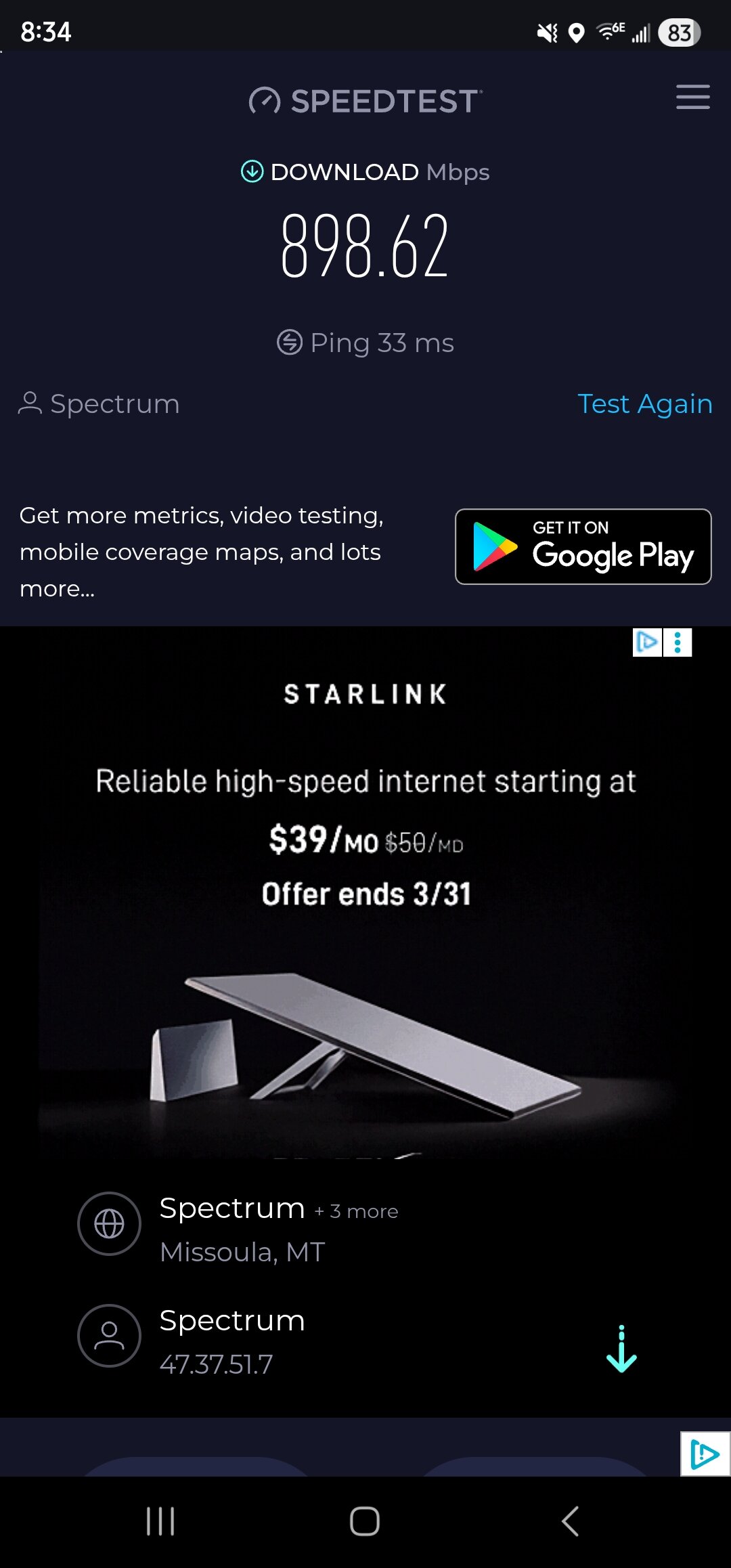
https://www.speedtest.net/ Paste a screenshot with the results when ur done testing.
-
You can check, remove, unplug and even replace everything you want but have you ever tought of doing a simple speed-test to see what the actual number is that you are recieving from your IPS in wireless conditions? I mean you can get a thousend mbits from your ISP, But if the network card can only hold 200mbit u are cooked for the other 800. you know what i mean. If you are recieving a good fair amounth it might be in your hardware and you don't have to bother your ISP with the issues you are facing, it replaces alot of steps ahead instantly.
-

-
Happy Birthday everyone.
-
Dot80 reacted to a post in a topic:
2026-03-14 Birthdays
-
Dot80 reacted to a post in a topic:
2026-03-14 Birthdays
-
Happy Birthday!
-
 lazymarcky reacted to a post in a topic:
New rotation for OWFT
lazymarcky reacted to a post in a topic:
New rotation for OWFT
-
lazymarcky reacted to a post in a topic:
2026-03-07 Birthdays
-
XtremeIdiots would like to wish all members celebrating their birthday today a happy birthday. DIRTRIDER (64)Romans3:23 (28)kenmen (28)
-

New rotation for OWFT
AthenA replied to skuzapo's topic in Call of Duty: World At War's World at War Map Rotations
Maybe ! It seems to have happened again tonight. I found it strange for the server to be empty on a Friday evening and when I tried to log in, the server was down. I restarted it and everything is now up. -
Happy Birthday folks especially Skuzapo who keeps us in games and is fun to have in the games!
- Yesterday
-
-
-
-
-
-
-
-
-
-























-
XtremeIdiots Supported Games
-

Call of Duty: World At War
Open Club · 453 members
-

Battlefield 6
Open Club · 41 members
-

Call of Duty 4
Open Club · 803 members
-

Call of Duty 2
Open Club · 213 members
-
Call of Duty: Modern Warfare II/III/Warzone
Open Club · 28 members
-

World of Warships
Open Club · 88 members
-

>XI< Fest 2025 - Orlando/Kissimmee
Closed Club · 21 members
-
Ark Survival Evolved
Open Club · 78 members
-

Loasis Virtual Happy Hour Group
Public Club
-
.jpg.9c86517fd804b4841c977e8c5ba734e8.jpg)
XI Fest - Branson, MO 2024
Closed Club · 24 members
-

Unreal Tournament
Open Club · 42 members
-

XI Fest - Georgia 2022
Closed Club · 29 members
-

Battlefield 2042
Open Club · 49 members
-
.cropped.jpg.eb9aebc3d84c18813bc20441a17204af.jpg)
>XI< Fest 2023 Gatlinburg
Closed Club · 51 members
-

Rust
Open Club · 76 members
-

Battlefield 4
Open Club · 156 members
-

PLAYERUNKNOWN'S BATTLEGROUNDS
Open Club · 138 members
-

XI Fest - Brussels 2018
Closed Club · 36 members
-

War Thunder
Read Only Club · 38 members
-

Minecraft
Open Club · 300 members
-

Battlefield 3
Read Only Club · 36 members
-
ARMA
Open Club · 54 members
-
Modern Warfare 2019
Open Club · 158 members
-

Battlefield V
Open Club · 86 members
-

Left 4 Dead 2
Read Only Club · 60 members
-

Insurgency
Open Club · 212 members
-

Destiny 2
Open Club · 15 members
-

Crysis Wars
Open Club · 26 members
-

BFBC2
Read Only Club · 27 members
-

XI Fest - Charlotte 2019
Closed Club · 61 members
-

World War 3
Open Club · 24 members
-

XI Fest - Nashville 2018
Closed Club · 66 members
-
Battlefield 1
Read Only Club · 93 members
-
Rising Storm 2: Vietnam
Read Only Club · 19 members
-